moar powershell – office365 group administration

No time for notes:

to check current ownership

get-distributiongroup -identity “display name of group” | fl

and look for managed by. if you use the set-distribution group with the -managedby flag, it will remove the current ownership, you will either need a script to add, which i don’t have right now, or to add with all owners listed. if only a few people are managing all without exception:

get-distributiongroup | set-distributiongorup -managedby admin1@domain.com,admin2@domain.com,admin3@domain.com -bypasssecuritygroupmanagercheck

to do it on just one

set-distributiongroup -identity “display name of group” -managedby admin1@domain.com,admin2@domain.com,admin3@domain.com -bypasssecuritygroupmanagercheck

Flexing Your Powershell: Making a bunch of public folders

I needed to create about 30 public folders, and three subfolders within each of them. Rather than manually create them all with powershell commands or through the ECP, I decided to work on a script and csv-import. I figured I’d spend as much time getting that together and it would save me time if I have to create a bunch of public folders in the future.

After a ton of trial and error (and some screensharing with my resident programming expert). i ended up with the following script and csv. Well, now that i think about it, it is really a command, but I saved it as a script!

SCRIPT (saved on desktop as pfscript.ps1)

Import-CSV C:\users\username\desktop\pffolders.csv | Foreach-Object {
new-publicfolder $_.displayname -path $_.rootfolderpath

CSV (saved on desktop as pffolders.csv)

displayname,rootfolderpath
Folder1,\
Subfolder1,\Folder1\
Subfolder2,\Folder1\
Sub-subfolder1,\Folder1\Subfolder2
Subfolder3,\Folder1\
Sub-subfolder1,\Folder1\Subfolder3
Folder2, \
Subfolder1, \Folder2

you get the drift…

Then connect up your powershell, change the directory to your desktop and run:

.\pfscript.ps1

Just a quick one today. Figured while I was thinking about it and posted the other stuff yesterday, I’d throw this up. Oh yeah, make sure you have your root permissions right first!

Flexing your powershell: Office365 Public Folder Edition

Over the last year I have been using powershell more and more for managing office365. Not only are there many scripts readily available to make bulk adds/changes/removals a breeze, but there is a ton of stuff that you can only access via powershell. Since I started working with office365, Microsoft has put a lot of the necessary items in the web based control panels (such as disabling password expiration), but they frequently change it’s appearance and when you need to make one change to a few hundred accounts at once, powershell is the go to tool.

Today I had to setup public folders for a tenant that had never had public folders. This started me with a clean slate, but there a few gotchas that I had to correct through powershell.

1. Although public folders are “public” we did not want all users to be able to see them by default. Default and Anonymous permissions are invisible in the web interface, but easily reviewed and changed with powershell.

2. Microsoft busted something this year with mail-enabled public folders. You can mail enable it and it is going to reject all inbound mail, because the anonymous permissions do not allow anonymous writing to public folders.

3. maintain read status per user. This can be managed per mailbox, but to open each up is a pain, I wanted to disable for all at once and be done. I’m all about the time saving.

BASIC COMMAND

The following assumes you have created a public folder mailbox and at least one public folder, probably more if you googled and found this article!

You want to see all of your public folders? connect to powershell and run

Get-PublicFolder “\” -Recurse

I’m gonna use the above a bunch! Run alone and it will return you a list of all the public folders in the hierarchy. Pipe a command after it and that’s when the magic happens!

FIRST UP, PERMISSIONS!

If you are just starting and have only created your public folder mailbox, this is the section for you. If you have a whole hierarchy folders in place you don’t want to delete and re-create, skim this for future reference, then move on to “already have folders in place?”

Run the following to see the default permissions assigned to your public folder mailbox. These permissions propogate to any future public folders created.

Get-PublicFolderClientPermission -identity “\”

By default (at this moment, MS may change at any moment without notice) default will grant all users permission to view the folders/items, and anonymous will have no access.

If you already have a number of public folders, run the below to see all folders and client permissions

Get-PublicFolder -identity “\” -Recurse | Get-PublicFolderClientPermissions

to get this in a csv:

Get-PublicFolder -identity “\” -Recurse | Get-PublicFolderClientPermissions | Export-Csv C:\path\to\file.csv

To fix this so that by default no users have access, run the following:

Remove-PublicFolderClientPermission -identity “\” -user default

This sets the default level to none. I wouldn’t recommend adding anonymous permissions to the root, unless you plan to mail enable all public folders, if so, you can run:

Add-PublicFolderClientPermission -identity “\” -user anonymous -accessrights “CreateItems”

Oh, and by the way, none of these commands are case sensitive.

Already have folders in place? To remove the default permissions from all folders in the public folder mailbox, run the following:

Get-PublicFolder “\” -Recurse | Remove-PublicFolderClientPermission -identity “\” -user default

and to add anonymous access to all public folders for mail-enabling them (still gotta mail enable through another PS command or the console)

Get-PublicFolder “\” -Recurse | Add-PublicFolderClientPermission -identity “\” -user anonymous -accessrights “CreateItems”

The above addresses problems 1 and 2. You can then manage user permissions through the Exchange console, or using similar commands to the above, replacing the user and accessrights as required.

For item 3, If multiple people are monitoring an inbound public folder, it only makes sense to have read/unread monitored for the whole folder instead of each person. To get the current status of all folders run:

Get-PublicFolder “\” -Recurse | select Identity, PerUserReadStateEnabled

to change one folder at a time:

Set-PublicFolder -identity “\Foldername”  -PerUserReadStateEnabled $false

to change one folder and it’s subfolders:

Get-PublicFolder “\FolderName” -Recurse | Set-PublicFolder -PerUserReadStateEnabled $False

to change all folders:

Get-PublicFolder “\” -Recurse | Set-PublicFolder -PerUserReadStateEnabled $False

Well, That’s all for today’s lesson. I’ll try to add more as I run into things, it’s been a bit hectic. I’ll also try to come back and clean this up and add screenshots, no promises though.

Oh, and if you need powershell basics and getting connected, there are a ton of good write ups available. May I suggest 365command.com (I would add connect-msolservice to the end of their instructions. It lets you run all of the commands without wondering which ones you can run from Azure powershell or MSOL powershell.:) )

Have a good holiday!

Duplicating an AWS server – should have just started from scratch…

I’ve spent the better part of a week working on this, and we have finally found all the little issues, so far…

Here’s the problem, we had a citrix server in AWS running some services for monitoring for our company, which was overloading the server causing usability issues both with citrix and the services. Rather than building a new server from scratch and reconfiguring either citrix or the services, we figured that we would just spin up a new instance from a nightly backup of the original server and remove components from each, which would be quicker than starting from scratch, theoretically that is. After way too much time spent on finding each glitch, here is the end result.

1. Spin up a new instance that will be your duplicate. NOTE: if you are in a domain, to avoid conflicts, put this server in its own security group so it cannot see the domain and cannot conflict with your live server.

2. Let it boot all the way up and connect to it. Once logged in use the EC2config service to rename the system on boot and set the admin password you desire. For more info on this service, see this link. Once those parameters are set, shut the instance down.

3. Take the latest snapshot in the AWS console for the instance you are copying, right click it and create a volume from it.

4. Detach the instance’s volume that it spun up with and attach the volume created from the snapshot on /dev/sda1 to make it the boot drive.

5. let the instance completely boot up. At this point, it will have the same network interface and IP as the original server, which can’t be changed in a VPC.

6. Shut the instance down and attach a new network interface with the desired IP address. Remove the old interface. NOTE: I did not do this portion personally, so I’m not sure if you need to boot it then shut down again to remove the old interface, but I would assume you can’t do it live.

You will now have a duplicate instance. It seems easy now that we have the steps, but getting here was such a pain I would have rather started from scratch.

WebDav for external access to Synology Shares via Windows

While setting up a Synology as a file server for a client, I wanted to have them be able to access their share through a mapped drive in windows, whether in the network or outside. Ran into some stumbling blocks and couldn’t find full answers so I’m posting my own (referencing already awesome documentation where available).

1. The client does not have a static IP and the Syno is the only internal device that needs to be accessed internally, so I did not feel the purchase of a static IP to be necessary. Synology allows you to sign up for a free DDNS address through them. I registered clientname.synology.me through the DDNS feature of the Synology control panel. See Synology’s Documentation here. Once that was up and running, I created a CNAME DNS record for files.clientdomain.com to resolve to clientname.synology.me.

2. I enabled WebDav on the Synology, as described here. NOTE: The users also need to have WebDav permissions to the share they are connecting to.

3. I created firewall rules for external traffic hitting ports 5001 and 5006 to redirect to the Internal Synology IP address.

4. I purchased a SSL certificate from godaddy for files.clientdomain.com, using this article as a guide to install it. Note about this article: I was not able to use some of the directories referenced, specifically /volume1/generic/certificate, so I used a shared folder that was already there. EDIT 03/09/15: Synology has made installing an SSL so much simpler! See this link. If the intermediate certificate errors, you can get the correct one from your provider, in the case of godady it is here.

NOTE: At this point, you can use DSFILE app for iPhone and Android without any further configuration.

5. Most of the documentation will tell you you need a third party application to use webdav to map a drive in Windows. See this for example. EXCEPT if you have an SSL cert. But almost none of the documentation tells you what to do if you have an SSL cert. After some trial and error I found you have to enter https://files.clientdomain.com:5006/sharename, in the map network drive folder box.

EXTRA CREDIT: if you want the same drive to work internally and externally: local DNS must be setup with a forward lookup zone for the domain, with files.clientdomain.com pointing to the internal address of the synology. If this isn’t an option, you can have one drive mapped to the internal address, and one mapped to the external.


Synology now has me totally sold! This is the fifth one I have installed at client locations and I’m ready to order the DS414 starting with two 4TB drives for my home!


Office365 – When Distribution Groups Go Bad

We have migrated a number of clients to Office365, including my own company’s email system. Every once in a while, we run into a glitch in the Matrix and have to chase down what Microsoft suddenly changed and how we can get around it. In today’s episode of “What Did Microsoft Fuck Up?”, we encounter distribution list problems.

These distribution groups have been working for the entire time that the accounts have been active, so in some cases, this has been over a year. The problem is that emails to distribution groups that include external contacts were delivering to the internal contacts and silently failing to the external. Logs available to the customer admin account did not indicate any failure. Opened a Service Request with Microsoft, but they are next to useless, and almost always call when I am not available. Researched on my own and found http://community.office365.com/en-us/forums/158/t/145925.aspx. Found that once we enabled the -ReportToOriginatorEnabled on the distribution groups, sending worked flawlessly.

Since I already had the ticket opened with Microsoft, I wanted to see if they could provide a root cause, and to educate them on their own system since other users are experiencing the same issue. Microsoft’s response was that it was due to the “service upgrade”, which all of the accounts in question had gone through months ago, and the problem only started a few days ago. I pushed them further and finally the tech I was working with was going to get a Senior FOPE (Forefront Online Protection for Exchange) to speak with me. Even she couldn’t get him on the phone. She essentially waved it off as a silent FOPE update that required the mx record for the domain to be changed to a new address that reflects domain-com.mail.protection.outlook.com, rather then the old address that did not use “protection”.

The problem in our case is then: these particular clients use McAfee SaaS spam filtering, thus their mx records need to be set to point to McAfee, and McAfee forwards the mail to Office365. Thus the root cause is apparent.

TL;DR:

Problem: distribution groups with external contacts deliver successfully internally, fail silently to external addresses.

Root Cause:

1. On the distribution groups -ReportToOriginatorEnabled is by default false. Historically, this has not been a problem.
2. There was a silent update to Forefront Online Protection for Exchange. This update recommends that the MX record for the domain point to the new office365 MX record that includes “protection” in the address.
3. The clients that experienced this issue use McAfee spam filtering which requires the MX records to point to McAfee rather than directly to office365.

Solution:

Set -ReportToOriginatorEnabled to True on all distribution groups for any company that cannot have the new MX record. This can be done for all distribution groups at once by using powershell command:

> Get-DistributionGroup | Set-DistributionGroup -ReportToOriginatorEnabled $true

Bear in mind that any further distribution group will need this flag changed as well. This can be accomplished using this powershell command:

Set-DistributionGroup “display name of distribution group” -ReportToOriginatorEnabled $true

when they tell you the data is unrecoverable, they lie

So last week I shattered the screen of my Samsung Galaxy S4. I dropped it from my pocket and I’m short, so that is only a 2.5 to 3 foot drop. It was directly onto concrete and landed perfectly on the corner to spiderweb the screen and render the LCD useless. Unfortunately I had just bought that phone at full price of $750 and not bought insurance. I’ve been having a rough couple of months, so when it happened I shrugged and drove to best buy to purchase another.

broken

Of course best buy was busy, but someone came up to me right away to ask what I needed and put me in the queue for setup and activation. I’m impatient so 15 minutes later I decided to activate it myself. I figured if I needed anything, I would come back. I activated my phone while waiting for my dinner at TGIFridays, no problem. Then I went home and attached my old phone to my computer to retrieve my data. This is where the fun starts.

The first problem I had was that the phone was not in usb mode, and without a screen I could not change that setting. So I started searching for backdoor solutions and came up with Kies (among others). This is where I ran into problem number 2, heretofore known as the Major Problem.

I, like most others, have a lot of personal information on my phone, so I put a PIN on it. While that won’t deter everyone, at least it buys me time to get into my corporate email system and send a remote wipe command if I need to. While this provides a layer of security if the phone is lost or stolen, when it is you trying to get to the data with a broken screen, 100% of people will tell you you are S.O.L.

More furious googling led to me ordering a few adapters and trying even harder to poke at the screen, but it was useless. Anything I tried was not working. It was time for the be all, end all, last resort, nuclear option. I was taking apart the phone to get to the motherboard.

Since I had just purchased a new S4, and had a S3 lying around with a broken charging port, I figured I stood a good shot of being able to swap the motherboard into something to either pull the data off or at least unlock and remove the PIN. The first step was finding videos on disassembling the devices.

S4 Tear Down  S3 Tear Down – You will really only need the first few minutes of either of these.

I started with the S3, hoping that I could attach the screen to the motherboard of the S4 and unlock the device. Followed the video to the point of exposing the motherboard so I could compare the connectors. I then disassembled the broken S4 to the same point. I disconnected the video connector from both and discovered that it was different and was going to have to use the new S4.**

LET ME INTERRUPT MYSELF FOR A FEW QUICK TIPS: I didn’t have a “plastic non marring tool” but I did have a plastic membership card (my barnes and noble worked well, gas station or grocery loyalty card would probably work too). This took time and patience but don’t use a small flathead screwdriver! I did on the broken one and it slipped a few times and left deep scratches on the side of the back panel. UGLY! Also I did not remove the speaker housing on the new S4. I figured the less parts I removed, the safer. You can get the back housing off without removing this part, so don’t dig it out if you dont have to!

While disassembling the old S4 that I was trying to get the data from. I managed to strip two of the screws and had to break the back cover off around the screws to get it off. I was very careful with the new one to make sure I had the right size screwdriver first so as not to do this to the back cover I needed to keep. After getting the back cover off of both devices, I attempted to make what I’m referring to as “The Beast”. After some Trial and error, I found that I could lay one face up and once face down and the video connector would make it from one phone to another. Put the batteries in and magic, the broken phone is displayed on the new phone. (note, the home button and soft keys will still need to be pressed on the old phone, but that’s easy enough)

the beast

From here it was a piece of cake. Unlocked, removed PIN, connected USB to my computer and changed to Mass Storage mode. Then I backed up the file system directly and also used Kies to back up everything. I then put everything back the way it was and used Kies to restore my data to my new phone!

The other option had the connector not reached would have been to put the old motherboard in the new. I tried the display option first as there are two tiny pin connectors (for antenna and something….) that I read were easily breakable and would make your phone non-functional. I wanted to try the safest of the nuclear options first, and it worked out!

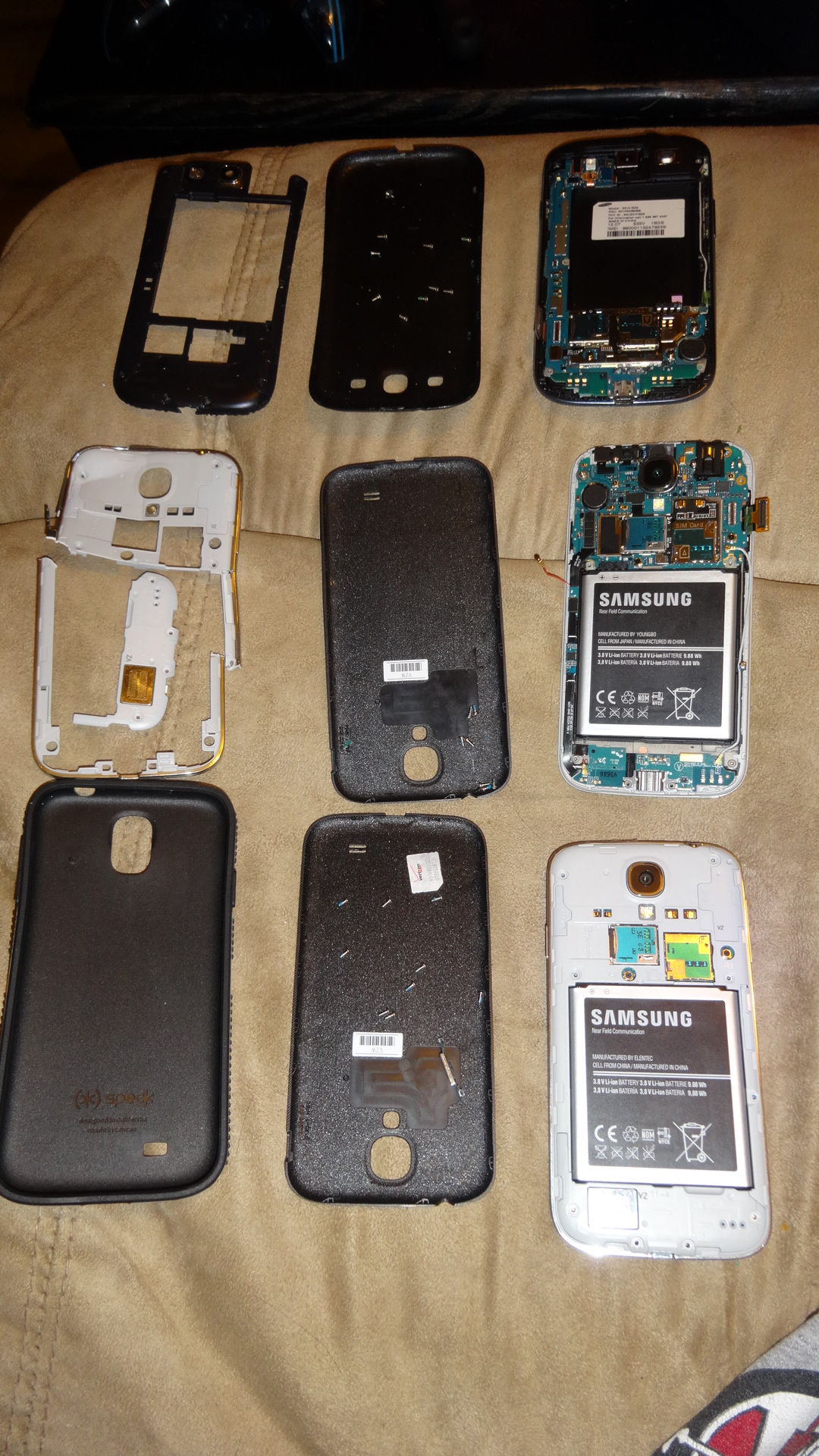
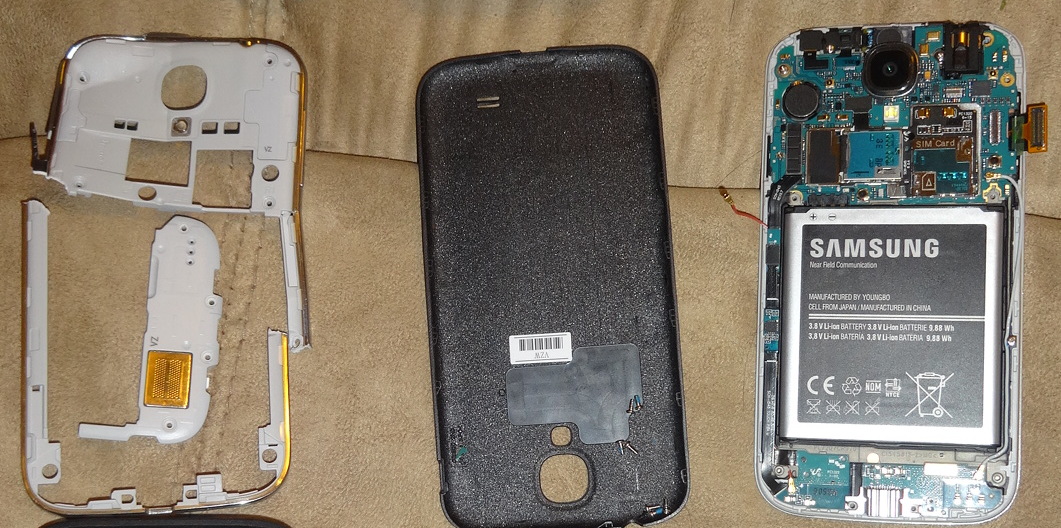
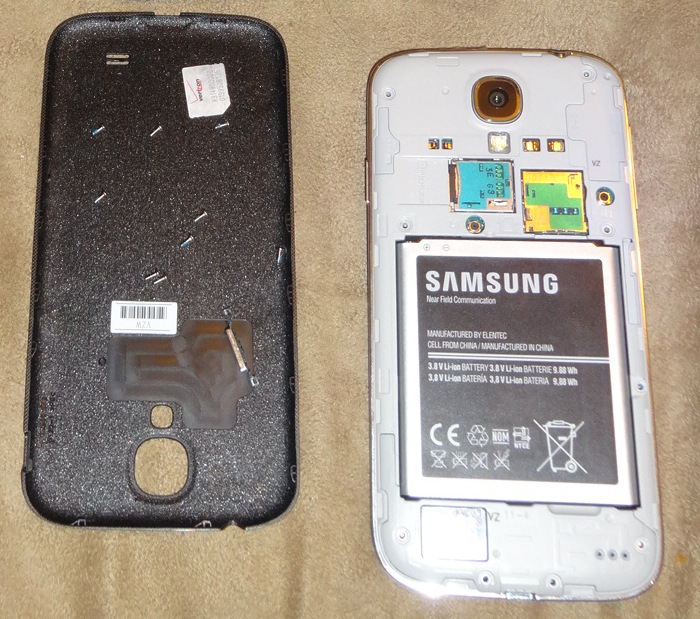
When all was taken apart, this is what I had. First image: Top row is the S3, middle is the broken S4, and bottom is the new S4. Second Image: Closeup of broken S4 and snapped back cover. Third Image: New S4 put back together.

DSC00258-001     

old S4

new S4

For Those who want to skip my eloquent story telling and get right to the steps….(or TL;DR)

  1. Watch S4 Tear Down, complete on old phone to point that motherboard is exposed.
  2. Watch S4 Tear Down again and complete on new phone to same point.
  3. Carefully disconnect video connector on both phones.
  4. With one phone face up, and one phone face down, connect video connector from new phone screen to motherboard of broken phone.
  5. Insert batteries in both phones.
  6. Use white power button to turn on old phone and new phone (new phone has to be on for the screen to get power.
  7. Unlock phone with new screen (home and softkeys will need to be pressed on old phone)
  8. Remove PIN via screen lock settings
  9. Connect old phone to computer and change to usb mode
  10. Access Data!

**footnote: There are two reasons I was willing to use the new S4 for this purpose: 1. I purchased it with a warranty, so if i broke it, I was just going to smash it into the ground (maybe run it over with my car) and get it replaced. 2. The data I wanted was text messages from my dad who recently passed away. I had some very touching messages, so I was willing to even pay for a third phone if I had to.

The blind migrating the blind (or how I migrated from vmware to hyper-v)

Had a client that decided not to take our recommendation of moving from an older version of vmware to the latest and greatest vmware on new hardware. Instead, they purchased whatever hardware and software they wanted from another vendor, and asked us to configure and migrate their entire domain (14+ servers) from the existing vmware environment to Hyper-V. Following will be my notes of what worked, maybe with a dash of what didn’t (even though I have tried to erase those moments from my memory). I will also include other pages that I referenced throughout….or a listing of them…I’m not sure yet… So to start, The Client (heretofore referred to as “The Client”), purchased the following

  • 2 HP DL380 Servers, each with 4 onboard NICs and 4 NICs on an expansion card, with dual power supplies
  • 2 Cisco SMB switches (I didn’t do much with the configuration of these, so that’s probably not the correct terminology)
  • 1 ESX iSCSI SAN, with 1 DAE. this included approximately 4.5 TB in the main enclosure on SATA drives, and another couple TB on SAS drives in the DAE.
  • Hyper-V and Windows Server 2012

Theoretically, the initial game plan was to:

  1. Store everything in a datastore on the SAN that was in a RAID5 configuration
  2. Break the server NICs into teams of two for failover and breaking out the SAN connection from the regular network connection
  3. Use System Center 2012 Virtual Machine Manager (SCVMM) to configure and migrate all of the machines

Seems simple right? Exactly. The posts following this one will go into detail on the following steps

  • Configuring datastores for Hyper-V storage, with a special note that two servers CANNOT connect to the same datastore
  • Setting up NIC teaming in **Hyper-V Manager**
  • Setting up the virtual switches in SCVMM
  • Testing the V2V process before the actual migration, including details on special considerations moving from Vmware to Hyper-V
  • Ensuring that your test environment is the same as the live migration environment (special appearance by Domain vs. Workgroup and Knowing your Network)

Seeing as I have been planning on writing this up since the migration which was 3+ Months ago, only time will tell when the follow up detailed posts will appear.

Sharepoint Online Syncing with Outlook, oh, and there’s limits….

Recently a client of mine decided to pull their calendar off of google, where it was held hostage and they would have to log in to a separate window to access it. The had moved to office365 6 months prior and were our pilot in what we can do with office365 for our other clients. We set them up with a calendar from the default list options, and setup permissions. Adding the calendar to their outlook was a few easy clicks.

To add a sharepoint calendar to outlook:

  1. Browse to the sharepoint portal – yourdomain.sharepoint.com
  2. Login with your office365 credentials
  3. Click the link in the nav bar on the left for the calendar
  4. Click the Calendar tab at the top
  5. Click “Connect To Outlook” in the ribbon
  6. Click Allow
  7. Click ok.

And Bam! sharepoint calendar in outlook!

All appeared well. That is until my import of their calendar entries completed.

You see, in order to get their entries out of their google calendar and into sharepoint, I had to export the google calendar as an .ics file to my computer, attach it to my outlook, attach their sharepoint calendar to my outlook, copy the entries from local to sharepoint, and let it sync away.

The next day they called and were getting errors that the list was too large, and couldn’t even open the calendar in outlook. After some quick googling, it turns out there is a hard list limit in Sharepoint Online of 5,000 entries. They were at 5,326. Microsoft says this is to reduce the load on the servers from syncing large lists. Since these are Microsoft servers in the cloud, you cannot change this limit.

Then another problem. I couldn’t batch delete the items since they were over the limit, and deleting the calendar altogether wouldn’t work either. I ended up manually removing enough entries to get them under the limit, then deleting the calendar and starting from scratch.

I created an archive calendar, with entries from 2006-2011, and a Corporate Calendar from 2012-present. This brought the active calendar down to 1,400 entries, which would give them plenty of room to grow, and we could re-evaluate in a few years, if they were still using this technology.

Calm waters until the next week. Now users, were getting access denied (403) errors. After an hour of troubleshooting on one user’s computer, and no google results, the only thing that I had determined was that on first attach the calendar would sync properly, but after closing and opening outlook, their permissions seemed to disappear. It was the end of the day, so I said I would take a look at it in the morning.

Being the person who can’t stand a problem left unsolved, I went a googling at home that evening. After some google-fu and adjusting keywords, I came across this link:

http://community.office365.com/en-us/forums/152/t/10155.aspx

and used this as a more specific reference for the registry entries:

http://blogs.technet.com/b/heyscriptingguy/archive/2005/05/02/how-can-i-add-a-site-to-internet-explorer-s-restricted-sites-zone.aspx

It turns out that it was a securty issue for internet explorer. Adjusting these registry entries and reopening outlook allowed the sync to run almost perfectly. In one case, the trusted zone security was set to medium, and I had to change it to low.

In the case of mydomain.sharepoint.com the registry should have a dword entry for “https” with a value of 2 in the following locations

HKEY_CURRENT_USER\Software\Microsoft\Windows\CurrentVersion\Internet Settings\ZoneMap\Domains\sharepoint.com\mydomain

HKEY_LOCAL_MACHINE\Software\Microsoft\Windows\CurrentVersion\Internet Settings\ZoneMap\Domains\sharepoint.com\mydomain

I created a script through our RMMS system (LabTech) to push these entries out to the computers. All is well.

Upgrading from Sharepoint Services 3.0 (Service Pack 3) to Sharepoint Foundation Server 2010

Just attempted to do this with the existing documentation, and I had a nightmare of a time. The Microsoft TechNet articles were pretty good, and the checklist here is helpful, but navigating back and forth through the different pages was difficult. The video HERE made it look really simple but some steps didn’t work quite as easily as I’d hoped, and it left out some key setup steps. I’m going to go through all the steps as it ended up working for me. I did a database attach upgrade from one server to another, setting the existing site to read only so that no changes could be made during the change. I’m also using port 8080 as well as the traditional port 80.

PREPARATION

Run the upgrade checker. I don’t have a whole lot of advice here, as mine ran clean. I have a fairly simple installation with one site and it is basic.

SETUP

On the new server download Sharepoint Foundation Server 2010 from here, and the SQL Express 2012 Management tools from here. Run the Sharepoint Foundation Server Installer. This will give you a menu, where you can install the prerequisites including Sharepoint Server 2008. Once this is completed, Run the Sharepoint Foundation Server Installer. Finally, run the SQL Express 2012 Management tools installer. All of these are pretty straightforward installers with little to no options. Once all of that is installed Run the Sharepoint Foundation Server Configuration Wizard. This will automatically setup the default site and settings. At this point if there are any customizations or features that need to be applied, this would be the time to apply them.

DATABASE BACKUP

On the existing installation, open the Central Administration for the Sharepoint site. Go to application management, then Content Databases. Make note of the database name for your site. Open SQL Server Management Studio Express and locate the database previously noted, I’ll refer to it as WSS_Content_a1. Right click WSS_Content_a1 and go to properties. Select Options from the left pane, and scroll down on the right pane to Database Read-Only, set it to true, and click ok. Now that the database is set to read-only, right click on it again, and select tasks, then back up. Ensure backup type is set to Full, and add a destination to back up to, including a file name ending in .bak. Once the backup completes, move the .bak file to the new server.

DATABASE UPGRADE

On the new server, open SQL Management Studio. Right click on Databases and select restore database. Select “From Device” and locate your .bak file, click ok to start the restore. Once the restore completes, some work must be done in powershell to prepare sharepoint and upgrade the database.

Open the Sharepoint 2010 Central Administration Site. Locate the database associated with the default site and make note of the database name. I will refer to it as WSS_Content_b2. Open the Sharepoint 2010 Management Shell. You will need to dismount the database that was created for the default site, and mount the database from your old site.

First to dismount the default database run, replacing WSS_Content_b2 with the database noted.

dismount-spcontentdatabase WSS_Content_b2

Then test your old site database, replacing WSS_Content_a1 with your restored database, and servername with your server name.

test-spcontentdatabase -name WSS_Content_a1 -webapplication http://servername/

If the test returns errors, research them and decide if you want to ignore or fix them. Once you are ready, mount your database to the site, again replacing with your own values.

mount-spcontentdatabase -name WSS_Content_a1 -webapplication http://servername/

This will put a percentage complete below the command, you can also check the status in the upgrade section of the Sharepoint Central Administration Site. Once the upgrade is complete, check the upgrade section of the Sharepoint Central Administration Site for information about any errors that may have occurred and to see the success or failure status.

Now when you browse to the default site, your site should appear. Once you have confirmed that is working, you can move on.

CONFIGURING PORTS  

This was a little tricky for us, as our client accesses the site on port 8080, internally and externally. To configure this, go to Application Management, then select Configure alternate access mappings.  The default should have and internal URL of http://servername and a Public URL for Zone of http://servername. The Intranet zone should have and Internal URL of http://servername:8080 and a Public URL for Zone of http://servername:8080. If you are accessing this via a web address as well, enter an Internal URL of http://my.sharepointsite.com:8080 with a Public URL for Zone of htpp://my.sharepointsite.com:8080, with a zone of Internet.

NOTES: change 8080 to whichever port you wish to use. Keep in mind for the external web address you may have to adjust your firewall rules to point to your new server. You may also need to adjust your DNS settings.

Finally, go into Web Applications, select Manage Web applications. Select your default site then click on “extend” from the ribbon. In the Create a new IIS web site Name, enter change the numbers following sharepoint to 8080 (or whichever port you are using). Change the port to 8080 (again, or whichever port you are using.) Finally, scroll down and change the URL to http://servername:8080/ and leave the zone at internet, click OK to apply.

VOILA! Test internally and externally to confirm it works and celebrate your success!