MS Teams – White Video

Haven’t seen much of anything from Microsoft on this, but having experienced it myself this week and having a number of co-workers and clients running into this this week, it is certainly worth sharing the fix I have found to be reliable.

Issue: Inbound video in meetings is white screens only

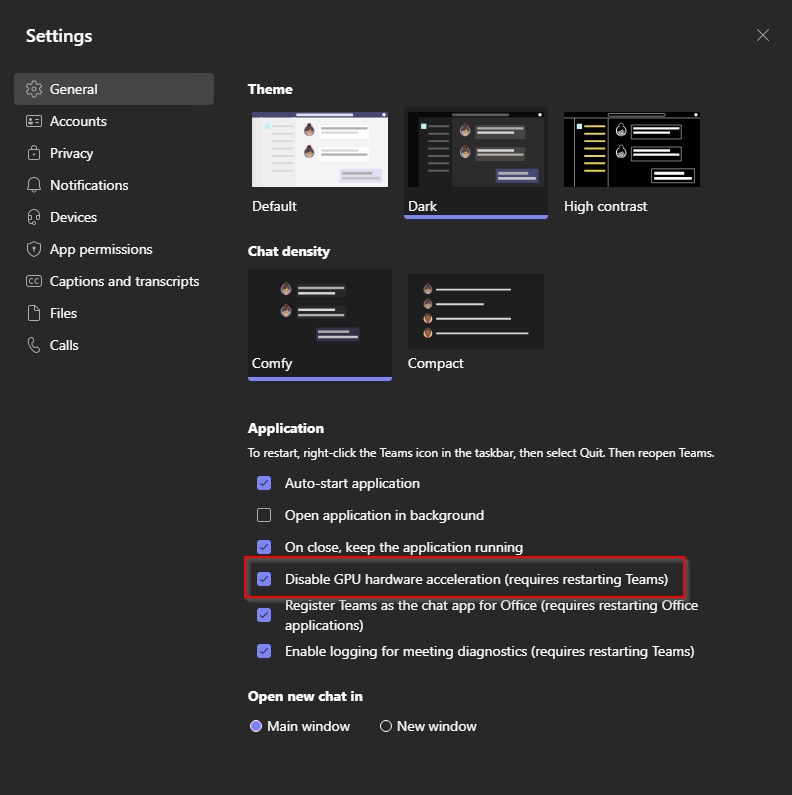
Fix: access your teams settings and uncheck the box for “Disable GPU hardware acceleration (requires restarting Teams)”

That should be it! Restart Teams and your video woes should be good to go.

If you are an administrator, I have not yet found a way to deploy this administratively, but if you do, please share!

Wonky audio devices – the case of randomness

Short and sweet one today, but I have run into this a few times and it tends to evade me for far longer than it should each time. This time it happened to me.

Occasionally a headset, be it bluetooth or wired, will work seemingly flawlessly for a few hours, but at some point will stop working on one or more applications. In my case, a brand new bluetooth headset worked in Teams in the morning, but by the afternoon, I couldn’t hear anything. Windows sounds still played fine, and my music streaming was loud and clear, but Teams just wasn’t giving me anything!

After replacing, rebooting, resetting, reconnecting, and fighting with it over a few days, I finally found the setting that was buried in the back of my head that I couldn’t find for the life of me. Steps below:

  1. Open the original control panel
  2. Select to view by “small icons”
  3. Open the “sound” option
  4. Locate your headset in the list of playback options and select it
  5. Click “properties”
  6. Go to the advanced tab
  7. Uncheck “Allow applications to take exclusive control of this device”
  8. if issues persist, repeat and uncheck “enable audio enhancements”

That’s it. Other than reinstall, reconnecting, rebooting, resetting. That’s the trick that has worked for me in this situation. Good luck out there!

Office365 – When Distribution Groups Go Bad

We have migrated a number of clients to Office365, including my own company’s email system. Every once in a while, we run into a glitch in the Matrix and have to chase down what Microsoft suddenly changed and how we can get around it. In today’s episode of “What Did Microsoft Fuck Up?”, we encounter distribution list problems.

These distribution groups have been working for the entire time that the accounts have been active, so in some cases, this has been over a year. The problem is that emails to distribution groups that include external contacts were delivering to the internal contacts and silently failing to the external. Logs available to the customer admin account did not indicate any failure. Opened a Service Request with Microsoft, but they are next to useless, and almost always call when I am not available. Researched on my own and found http://community.office365.com/en-us/forums/158/t/145925.aspx. Found that once we enabled the -ReportToOriginatorEnabled on the distribution groups, sending worked flawlessly.

Since I already had the ticket opened with Microsoft, I wanted to see if they could provide a root cause, and to educate them on their own system since other users are experiencing the same issue. Microsoft’s response was that it was due to the “service upgrade”, which all of the accounts in question had gone through months ago, and the problem only started a few days ago. I pushed them further and finally the tech I was working with was going to get a Senior FOPE (Forefront Online Protection for Exchange) to speak with me. Even she couldn’t get him on the phone. She essentially waved it off as a silent FOPE update that required the mx record for the domain to be changed to a new address that reflects domain-com.mail.protection.outlook.com, rather then the old address that did not use “protection”.

The problem in our case is then: these particular clients use McAfee SaaS spam filtering, thus their mx records need to be set to point to McAfee, and McAfee forwards the mail to Office365. Thus the root cause is apparent.

TL;DR:

Problem: distribution groups with external contacts deliver successfully internally, fail silently to external addresses.

Root Cause:

1. On the distribution groups -ReportToOriginatorEnabled is by default false. Historically, this has not been a problem.
2. There was a silent update to Forefront Online Protection for Exchange. This update recommends that the MX record for the domain point to the new office365 MX record that includes “protection” in the address.
3. The clients that experienced this issue use McAfee spam filtering which requires the MX records to point to McAfee rather than directly to office365.

Solution:

Set -ReportToOriginatorEnabled to True on all distribution groups for any company that cannot have the new MX record. This can be done for all distribution groups at once by using powershell command:

> Get-DistributionGroup | Set-DistributionGroup -ReportToOriginatorEnabled $true

Bear in mind that any further distribution group will need this flag changed as well. This can be accomplished using this powershell command:

Set-DistributionGroup “display name of distribution group” -ReportToOriginatorEnabled $true

Sharepoint Online Syncing with Outlook, oh, and there’s limits….

Recently a client of mine decided to pull their calendar off of google, where it was held hostage and they would have to log in to a separate window to access it. The had moved to office365 6 months prior and were our pilot in what we can do with office365 for our other clients. We set them up with a calendar from the default list options, and setup permissions. Adding the calendar to their outlook was a few easy clicks.

To add a sharepoint calendar to outlook:

  1. Browse to the sharepoint portal – yourdomain.sharepoint.com
  2. Login with your office365 credentials
  3. Click the link in the nav bar on the left for the calendar
  4. Click the Calendar tab at the top
  5. Click “Connect To Outlook” in the ribbon
  6. Click Allow
  7. Click ok.

And Bam! sharepoint calendar in outlook!

All appeared well. That is until my import of their calendar entries completed.

You see, in order to get their entries out of their google calendar and into sharepoint, I had to export the google calendar as an .ics file to my computer, attach it to my outlook, attach their sharepoint calendar to my outlook, copy the entries from local to sharepoint, and let it sync away.

The next day they called and were getting errors that the list was too large, and couldn’t even open the calendar in outlook. After some quick googling, it turns out there is a hard list limit in Sharepoint Online of 5,000 entries. They were at 5,326. Microsoft says this is to reduce the load on the servers from syncing large lists. Since these are Microsoft servers in the cloud, you cannot change this limit.

Then another problem. I couldn’t batch delete the items since they were over the limit, and deleting the calendar altogether wouldn’t work either. I ended up manually removing enough entries to get them under the limit, then deleting the calendar and starting from scratch.

I created an archive calendar, with entries from 2006-2011, and a Corporate Calendar from 2012-present. This brought the active calendar down to 1,400 entries, which would give them plenty of room to grow, and we could re-evaluate in a few years, if they were still using this technology.

Calm waters until the next week. Now users, were getting access denied (403) errors. After an hour of troubleshooting on one user’s computer, and no google results, the only thing that I had determined was that on first attach the calendar would sync properly, but after closing and opening outlook, their permissions seemed to disappear. It was the end of the day, so I said I would take a look at it in the morning.

Being the person who can’t stand a problem left unsolved, I went a googling at home that evening. After some google-fu and adjusting keywords, I came across this link:

http://community.office365.com/en-us/forums/152/t/10155.aspx

and used this as a more specific reference for the registry entries:

http://blogs.technet.com/b/heyscriptingguy/archive/2005/05/02/how-can-i-add-a-site-to-internet-explorer-s-restricted-sites-zone.aspx

It turns out that it was a securty issue for internet explorer. Adjusting these registry entries and reopening outlook allowed the sync to run almost perfectly. In one case, the trusted zone security was set to medium, and I had to change it to low.

In the case of mydomain.sharepoint.com the registry should have a dword entry for “https” with a value of 2 in the following locations

HKEY_CURRENT_USER\Software\Microsoft\Windows\CurrentVersion\Internet Settings\ZoneMap\Domains\sharepoint.com\mydomain

HKEY_LOCAL_MACHINE\Software\Microsoft\Windows\CurrentVersion\Internet Settings\ZoneMap\Domains\sharepoint.com\mydomain

I created a script through our RMMS system (LabTech) to push these entries out to the computers. All is well.