A more elegant GPO Export Script

My previous post Export All GPOs in a domain to XML or HTML gets hit quite frequently, and today I had need to use the script so I took a bit more time to refine it.

Now instead of having to run two separate scripts, it has been consolidated to one, and the following features have been added:

  1. Pop up explorer to select export location
  2. exports a csv list of all of the GPOs
  3. sanitizes GPO names that contain forward or back slashes and replaces these characters with hyphens
  4. puts a subfolder for HTML and a subfolder for XML in the export location specified
  5. Utilizes transcript to a text log in the export location
  6. zips both folders, log, and csv into an archive for easy upload/download
  7. has a confirmation button that the script completed with the export location on script completion.

In the end, the selected export folder will contain the following:

  1. A folder called “HTML” with an individual HTML export of each group policy in the domain
  2. A folder called “XML” with an individual XML export of each group policy in the domain
  3. A text file that includes the transcript of the powershell session
  4. A csv that includes a list of all the GPOs found
  5. A zip file of all of the above

##prompt user to select a folder for exports
$Shell = New-Object -ComObject "WScript.Shell"
$Button = $Shell.Popup("Please select a folder to store exported reports.", 0, "Completed", 0)
Add-Type -AssemblyName System.Windows.Forms
$browser = New-Object System.Windows.Forms.FolderBrowserDialog
$null = $browser.ShowDialog()
$rootpath = $browser.SelectedPath

##define export paths for all outputs
$gpolist = Join-Path -path $rootpath -ChildPath "GPO-list.csv"
$logfile = Join-Path -path $rootpath -ChildPath "GPO-Export-Log.txt"
$HTMLfolderpath = join-path $rootpath HTML
$XMLfolderpath = join-path $rootpath XML

##start logging
Start-transcript -path $logfile

##check for folders, create if they don't exist
if(!(Test-path -PathType Container $htmlfolderpath))
{
    write-host "creating HTML Export Directory" -ForegroundColor DarkGreen -BackgroundColor Black
    start-sleep -seconds 2
    New-item -ItemType Directory -path $HTMLfolderpath
}

if(!(Test-path -PathType Container $XMLfolderpath))
{
    write-host "creating XML Export Directory" -ForegroundColor DarkGreen -BackgroundColor Black
    start-sleep -seconds 2
    New-item -ItemType Directory -path $XMLfolderpath
}

#get list of GPOS and exports as CSV
write-host "Getting List of GPOs"
start-sleep -seconds 2
$AllGpos = get-gpo -all
$AllGpos | Export-Csv $gpolist

##iterate through GPOS to export reports
ForEach($g in $AllGpos)
{
    $filename = $g.DisplayName
    ##replaces backslashes and forward slashes with hyphens
    $filename = $filename -replace '\\', '-'
    $filename = $filename -replace '/', '-'
    write-host "exporting reports for GPO $filename" -ForegroundColor DarkGreen -BackgroundColor Black
    $HTMLfullpath = join-path -path $HTMLfolderpath -childpath $filename
    $HTMLGpo = Get-GPOReport -reporttype html -guid $g.Id -path $HTMLfullpath
    $XMLfullpath = join-path -path $XMLfolderpath -childpath  $filename
    $XMLGpo = Get-GPOReport -reporttype xml -guid $g.Id -path $XMLfullpath

}

##add HTML extensions to exported HTML files
Write-host "adding extension to HTML files" -ForegroundColor DarkGreen -BackgroundColor Black
get-childitem -path $HTMLfolderpath | Rename-Item -NewName { $PSItem.Name + ".html" }

##add XML extensions to exported XML files
Write-host "adding extension to XML files" -ForegroundColor DarkGreen -BackgroundColor Black
get-childitem -path $XMLfolderpath | Rename-Item -NewName { $PSItem.Name + ".xml" }

##stop logging
Stop-transcript

##zip all results into export folder
Write-host "zipping results" -ForegroundColor DarkGreen -BackgroundColor Black
$zipfile = $rootpath + "\allGPOs.zip"
compress-archive -path $rootpath -DestinationPath $zipfile

##prompt user that export is completed
Write-host "Completed Export" -ForegroundColor DarkGreen -BackgroundColor Black
$Shell = New-Object -ComObject "WScript.Shell"
$Button = $Shell.Popup("Export Completed to $rootpath. Click OK to Exit.", 0, "Completed", 0)

Flexing your Powershell: Getting a count of computer by OU

Today I needed to determine the number of computers in active directory for a client based on their location. Luckily, this client has their OU’s structured to Region\Country\City, but all I had was a list of the computers and their Distinguished Names. Since this puts the workstation name first, then goes city/country/region, this was challenging to split in excel and group up.

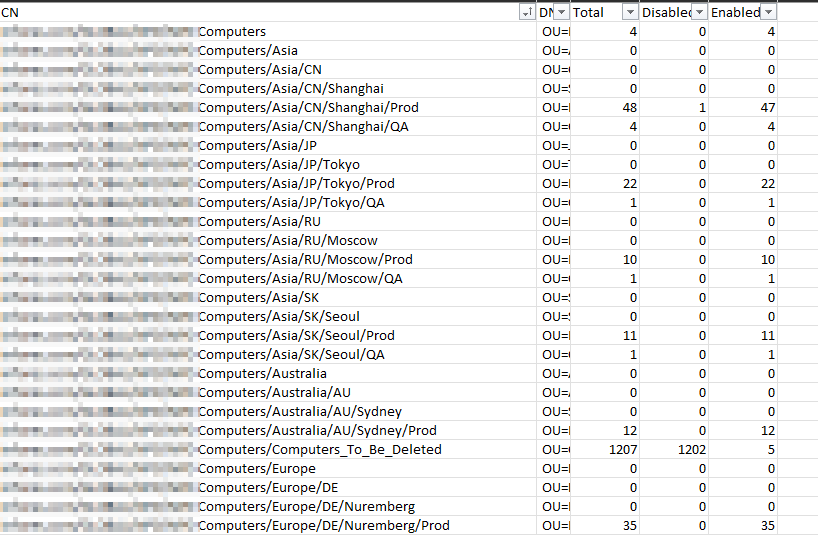
I spent awhile drafting the below script, which will enumerate the OU’s, then go into each and count the total number of computers, the number of disabled computer, the number of disabled computers, then export it to a csv. In my case, I scoped it specifically to the OU that contained only computers, but this can be expanded as needed.

##define csv to export to
$csvfile = "C:\temp\exports\pc-count-by-ou.csv"


##get all OU's under specified OU
$OUlist = get-adorganizationalunit -filter * -searchbase "OU= Computers,DC=yourdomain,DC=com" -Properties canonicalname | select distinguishedname, canonicalname 

##iterate through each OU
foreach ($ou in $oulist){

##get OU CN
$readableOU = $ou.canonicalname
##get OU DN
$scriptOU = $ou.distinguishedname

##Count all pc's in OU and store in a variable
$totalOUPCcount = get-adcomputer -filter * -searchbase "$scriptou" -searchscope OneLevel| measure-object
$totaloupccountnumber = $totalOUPCcount.Count

##Count all disabled pc's in OU and store in a variable
$disabledpccount = get-adcomputer -filter {enabled -eq $False} -searchbase "$scriptou" -searchscope OneLevel | measure-object
$disabledpccountnumber = $disabledpccount.Count

##Count all enabled pc's in OU and store in a variable
$enabledpccount = get-adcomputer -filter {enabled -eq $True} -searchbase "$scriptou" -searchscope OneLevel | measure-object
$enabledpccountnumber = $enabledpccount.Count

##line to write with results 
$csvlog = "$readableOU; $scriptOU; $totaloupccountnumber; $disabledpccountnumber; $enabledpccountnumber"
##print to working window
write-host "$csvlog"
##append to csv
$csvlog | out-file $csvfile -append 
}

Note, this does not put headers in, which I may go back and update later, but the csv can then be opened with excel, and using the “text to columns” feature with semicolon as the delimiter, gives us some usable results. (I’ve added the headers manually in my excel, and since the DN is not very useful in my current case, just squished that down to get it out of my view).

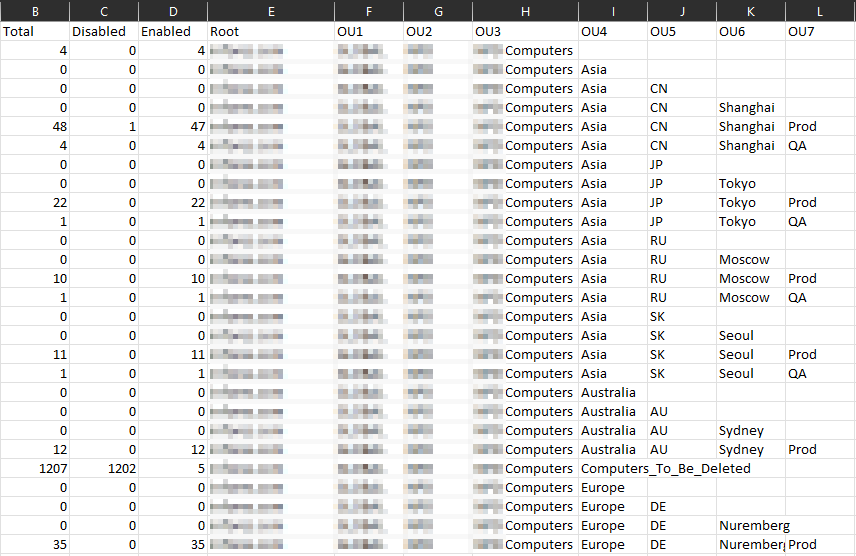
I can also further use text to columns on the “CN” field using the “/” as the delimiter since it is in a better order, as desired.

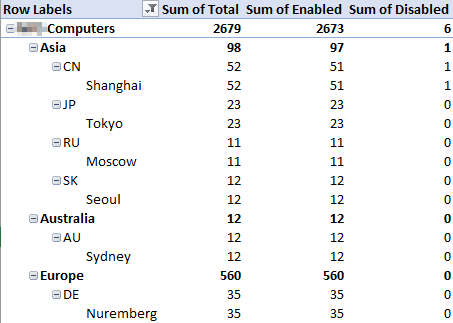
I now have a much more useful list to group these up with a pivot table and get the summaries I need, and get as detailed as I wish.

I’ll probably also adjust the script to return the actual computers in the script so that I can have a list by location, but that is for another time. Happy Powershelling!

Dear people who name products, do better.

I’m looking at you specifically Microsoft.

There seems to be a current trend in naming products using the same or very similar words. I get it, for brand association and search engine optimization, keeping it the same keeps the brand top of mind and search results, but the big headache with this for consumers is making sure they are getting and using the product they want.

Let’s look at an example of it done right. Sony PlayStation. The first PlayStation was just that “Sony PlayStation”. When the successor came along, they followed a logical path and went with “Sony PlayStation 2”, or the widely adopted PS2, and so on through the PlayStation 3 (PS3), PlayStation 4 (PS4), and the current generation PlayStation 5 (PS5). When Sony stepped into the handheld and mobile space, they went with the logical extension of PlayStation Portable, fitting right into their nickname branding with PSP. They then Released the PlayStation Vita, which was close enough to sound standard with their naming convention, but also differentiated enough that the consumer can easily tell the difference.

Our second example is a little less direct about their generations, but still done well, Nintendo. Their first “console” release in Japan only was the “Color TV-Game”. After this, they started putting their name in the console with the “Nintendo Entertainment System” (NES). They followed this with the logical “Super Nintendo Entertainment System” (SNES). These two logically named systems were followed with the “Nintendo 64” (N64). This may seem like a turn, but made logical sense from the technology side as the NES was an 8 bit system, the SNES was 16 bit, and N64 was their foray into the 64 bit space. From there they went to “Nintendo Game Cube”, “Nintendo Wii”, “Nintendo Wii U”, and the current “Nintendo Switch”.

I think Nintendo did this well with keeping their brand visibility by embedding Nintendo into the name itself, while having clearly distinct names between the generations, save the Wii vs. Wii U step in the wrong direction.

So lets get to the the challenge I have with Microsoft. Sticking with their game console naming, they stepped into the space with the Microsoft Xbox, which generally is and was just referred to as an Xbox. Their successor was named the Microsoft Xbox 360. Not super logical in any way, but differentiated enough for even the parents trying to buy these for Christmas to be likely to get the right version. When they were teasing their third generation, there was a lot of online discussion over what the name would be. Would they go Xbox 720? Xbox 1080? Xbox Infinity? Then the announcement came that they were naming it the Xbox One.

This is where I start to take issue with the naming. I can’t find any logic in a third generation console being named “One”. But the problem only gets worse from here. They then released some consoles that were not quite fourth generation called the “Xbox One S” and “Xbox One X”, providing smaller form factor and some performance upgrades, but still using the “Xbox One” generation of games. My initial problem with this was that the vast majority of non-Xbox users could not easily identify the difference from these, and I constantly got asked if there was even a difference. Also, “S” and “X” sound way to close when spoken and it was hard to explain that “S like Sierra” is the newer low end entry into the space, and “X like X-ray” is the high end with support for 4K. Totally makes sense right? (I briefly forgot this is text, that question is definitely sarcasm).

For their final and most egregious violation in this train of naming, their current generation console is the Xbox Series S and the Xbox Series X. In just typing that, it took me three times to get it right. They took the most egregious violation in their letter choice from the previous generation, and doubled down by changing “One” to “Series”. So the lineup looks like:

  • Xbox One
  • Xbox One S
  • Xbox One X
  • Xbox Series S
  • Xbox Series X

With minor and major differences between each of these, if a person went into a store looking to purchase one of these as a gift, not being a Xbox user themselves, I suppose there is a 20% chance they would buy the model that the recipient wanted.

I’ll stop with the exposition for a moment here, and just give a side by side example of operating system naming conventions so that you can draw your own conclusions on these.

Year Android OS (Google MobileOSX (apple desktop)Windows (Microsoft Desktop)
Pre-
1990
Windows 1.01 – Windows 2.11
1990 -1994Windows 3.0 – Windows 3.5
Windows NT 3.1 – Windows NT 3.5.1
1995Windows 95
1998Windows 98
1999Windows 98 Second Edition
2000Windows 2000
2000Windows Me
2001Mac OS X 10.0 and Mac OS X 10.1Windows XP
2002Mac OS X 10.2
2003Mac OS X 10.3
2004Mac OS X 10.4
2006Mac OS X 10.5
2007Windows Vista
2006Mac OS X 10.6
2008Android 1.0
2009Android Cupcake
Android Donut
Windows 7
2010Android Eclair
Android Froyo
Mac OS X 10.7
2011Android Gingerbread
Android Honeycomb
Android Ice Cream Sandwich
2012Android Jelly BeanOS X 10.8Windows 8
2013Android KitKatOS X 10.9Windows 8.1
2014Android LollipopOS X 10.10
2015Android MarshmallowOS X 10.11Windows 10
2016Android Nougatma OS 10.12
2017Android OreomacOS 10.13
2018Android PiemacOS 10.14
2019Android 10macOS 10.15
2020Android 11macOS 11
2021Android 12macOS12Windows 11

A final word for Microsoft, and now I’m going to bring in acronyms which could be an entire post of it’s own. Microsoft 365, Office 365 and Azure all have a number of things that all include those words or numbers, making it not so straightforward. The particular example I will give is regarding Active Directory and their implementation of this in the 365/Azure space.

  • First there was Active Directory when you hosted it on your server in your network. Most of the IT people have called it just AD.
  • Then came Azure Active Directory when you were able to have this identity service in the cloud. Microsoft references this as AAD.
  • To connect these two, you have Azure Active Directory Connect, abbreviated by Microsoft AADC.
  • Then there is the full featured Azure Active Directory Domain Services, abbreviated by Microsoft as AADDS.
  • Now to differentiate between the on premise full feature, you also need Active Directory Domain Services, which Microsoft abbreviates as ADDS.
  • Finally, if you want to federate your connection between ADDS and AADDS, you will need Active Directory Federation Services, abbreviated by Microsoft as ADFS.

All in all, that is AD, AAD, AADC, AADDS, ADDS, ADFS. This doesn’t even get into the tangential services of PIM, PAM, MIM, MAM, MEM, MDM, or IAM.

Based on those acronyms, good luck finding the article that is relevant to the particular flavor of active directory or identity management that you are researching….

*for those of you who stuck around and want to know what those last acronyms are, in order of appearance: Privileged Identity Management, Privileged Access Management, Microsoft Identity Manager, Microsoft Application Manager, Microsoft Endpoint Manager, and Mobile Device Management. All of which are in a very similar technology space of Identity and Access Management.