Haven’t seen much of anything from Microsoft on this, but having experienced it myself this week and having a number of co-workers and clients running into this this week, it is certainly worth sharing the fix I have found to be reliable.
Issue: Inbound video in meetings is white screens only
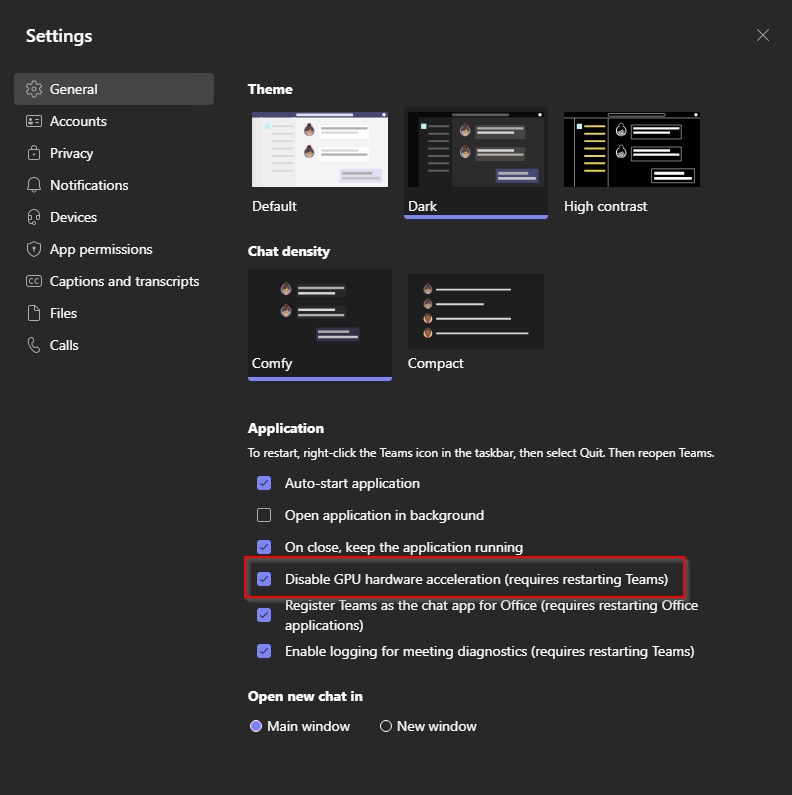
Fix: access your teams settings and uncheck the box for “Disable GPU hardware acceleration (requires restarting Teams)”
That should be it! Restart Teams and your video woes should be good to go.
If you are an administrator, I have not yet found a way to deploy this administratively, but if you do, please share!
If you work in tech, specifically in a consulting or service provider role, you may find yourself logging in and out of websites to jump between Microsoft 365 tenants, domain registrar accounts, email accounts, and various other websites. Even if you are not working in tech, you may have multiple logins for the same site for different things, or multiple email accounts that have to be logged in and out of. For example, if you have a personal outlook.com account and a work or school account that uses Microsoft 365, you may find yourself trying to access email and finding you are in the wrong account.
Additionally, since web browsers are consistently getting “smarter” and storing credentials and cookies, if a browser is not fully closed or cleared, you may think you have logged into a different account but may still end up logged into an account that was previously logged in, causing review of inaccurate information, or even worse, changes to be made in the wrong account.
The below sections will show you how to create profiles in Google Chrome and Microsoft Edge, two of the most commonly used web browsers. The advantage to having separate profiles is that the cached credentials and cookies are separated between these profiles, so if you create a profile for “ABC Widgets” and use it to sign into the Microsoft 365 account for ABC Widgets, when you return to your own profile or the profile for “XYZ Financial”, it behaves as if you have never signed in to “ABC Widgets”.
Additionally, when using profiles, you can use the “keep me signed in” functionality of Microsoft 365 and other vendors. This allows you to open the profile in the browser and be already signed into the account for the site you are browsing to. Each profile can also have it’s own separate bookmarks, search history, saved passwords, and other settings.
Finally, you can also create a separate work and home profile in the same browser. If you are using a home computer for work purposes, this can help to keep the logins and activity separate from each other.
Setting up profiles in Google Chrome
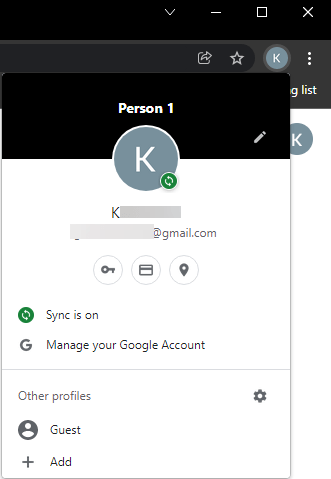
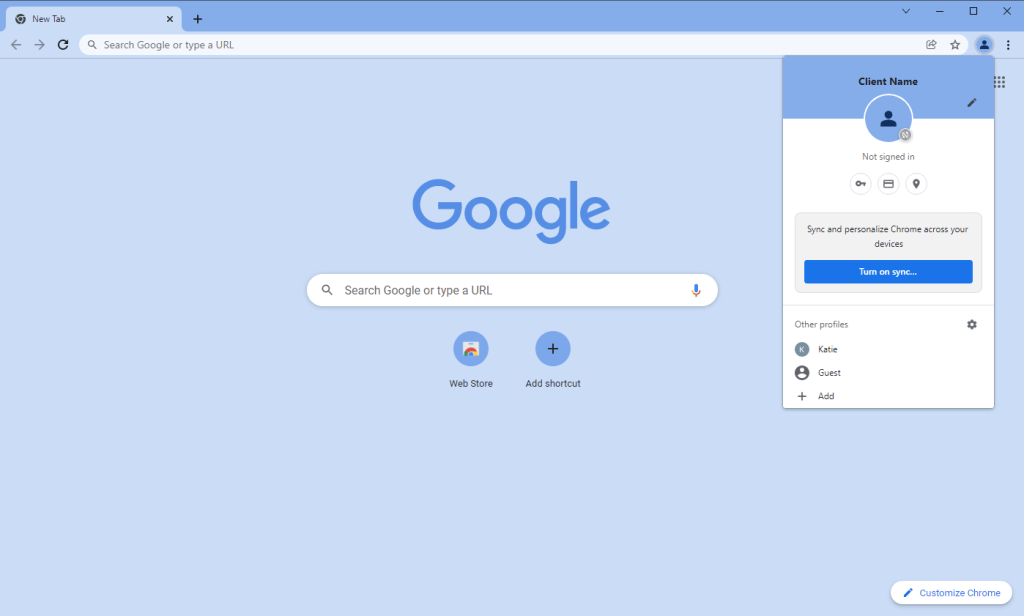
If you are signed into Chrome, there will be an icon with your image or initial in the top right. Click it to open a dropdown menu.
From the dropdown, click on the option for “add”
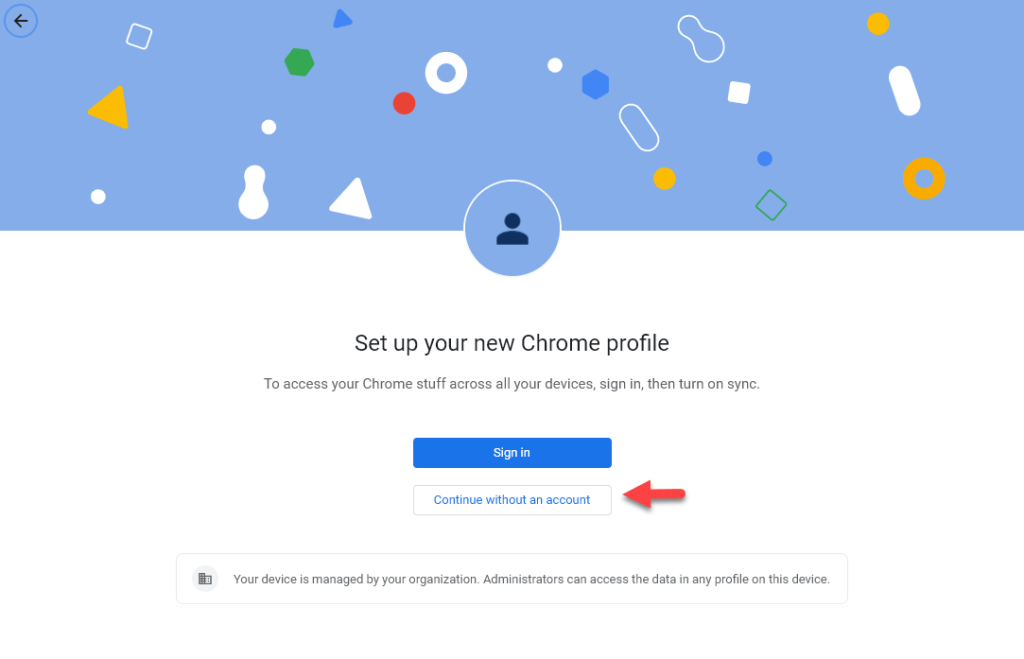
In the window that opens, select “Continue without an account”
(you may choose to sign in if you are creating a secondary google profile, perhaps if you have gmail at home and google apps for work.)
Give the profile a name, Set the desired theme color for the profile, and select if you want a desktop shortcut automatically created**
Tip: I use a dark grey or black theme for my own profile, and colors for any of my client profiles. This is a quick visual indicator of whether I’m in my personal profile or a client’s.
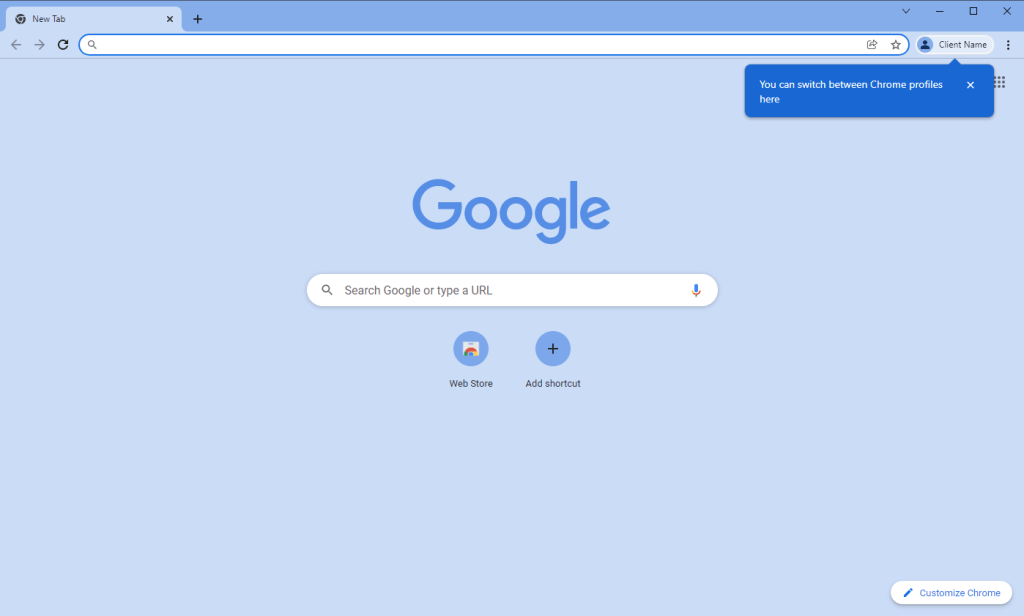
The new profile will open in it’s own new window automatically after you click done on the previous step.
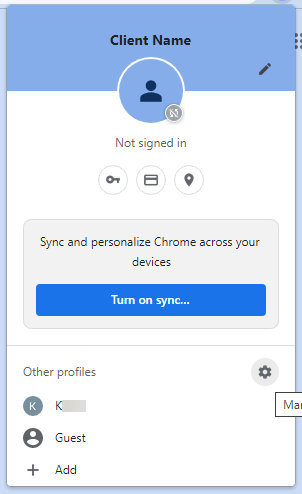
Click in the same spot to view profiles, or open a new window in a different profile
If you click on the settings gear in the dropdown menu, you can manage your profiles.
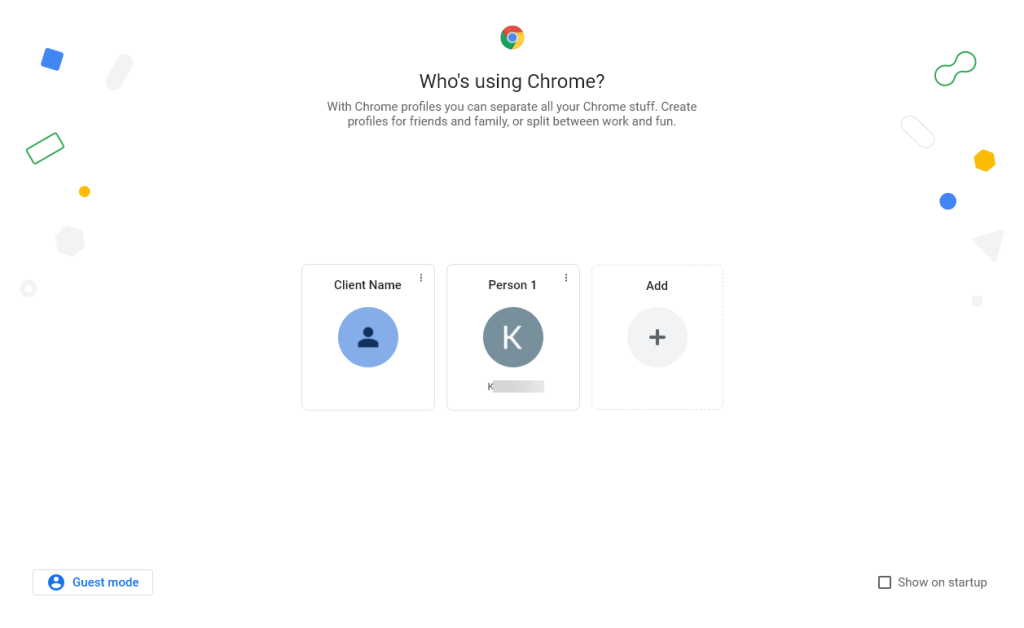
From these settings, you can add and delete profiles, select a profile to launch a new chrome window for, or select to show this window on startup.
If you select to show this window on startup, this window with the profile selector will be the first thing to open when you open chrome, allowing you to select which profile you want to use for that session
If you selected to create a shortcut, it will appear on your desktop with the profile name first. You can use this shorcut to quickly launch a chrome window into that profile.
You can also drag this to your taskbar to pin it for ease of access
Setting up profiles in Microsoft Edge
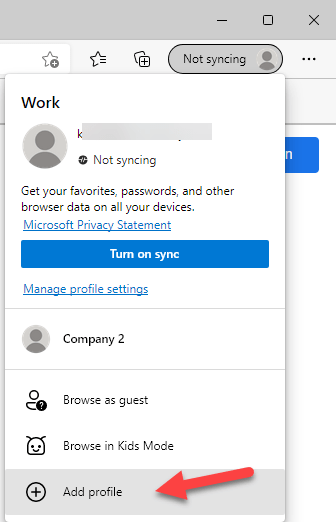
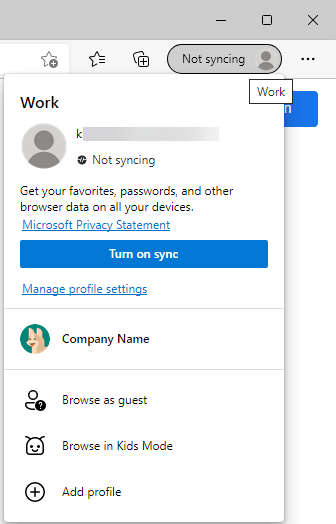
On the top right of Microsoft Edge, you will see a User icon. Click here to open a dropdown menu.
*icon and words will vary depending on how your profile is currently setup.
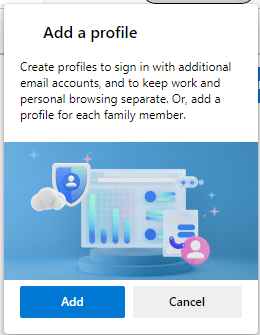
Click on “Add Profile” at the bottom of the dropdown menu.
Click “Add” on the prompt
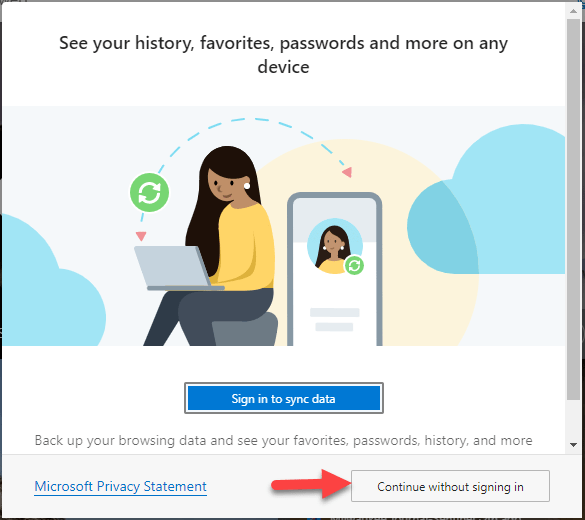
This will open a new edge browser in the new profile with an auto-generated description. Click on “Continue without signing in”
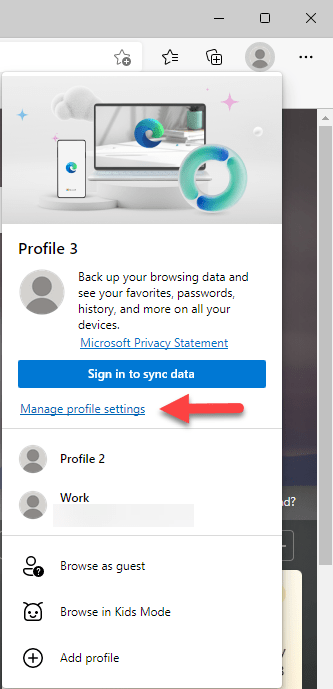
Click on the profile again to open the dropdown menu, and click the link for “Manage profile settings”.
Click on the elipsis (the three dots) and then select “edit” to edit the profile
You could also select delete if you no longer need the profile
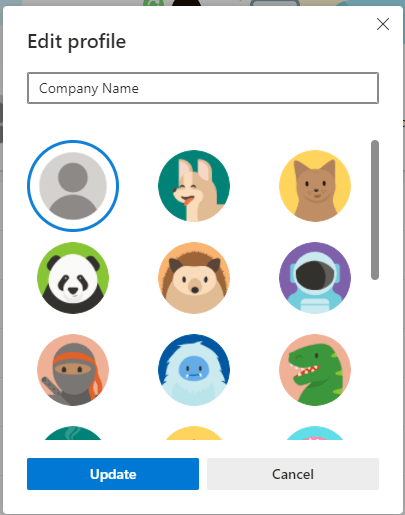
In the prompt, give the profile a name for easy identification. you can also give it an image to display as the icon.
Now when clicking on the profile menu, the name and icon you selected are displayed.
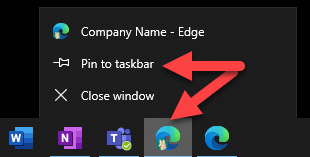
Additionally, with the profile open, you will have your primary profile which has no icon, and the one with the icon for the new profile in your taskbar.
If you right click this icon, you can select to “pin to taskbar” so even when it closes it remains there for ease of access.
Now go forth and login to multiple accounts with convenience!
There seems to be a current trend in naming products using the same or very similar words. I get it, for brand association and search engine optimization, keeping it the same keeps the brand top of mind and search results, but the big headache with this for consumers is making sure they are getting and using the product they want.
Let’s look at an example of it done right. Sony PlayStation. The first PlayStation was just that “Sony PlayStation”. When the successor came along, they followed a logical path and went with “Sony PlayStation 2”, or the widely adopted PS2, and so on through the PlayStation 3 (PS3), PlayStation 4 (PS4), and the current generation PlayStation 5 (PS5). When Sony stepped into the handheld and mobile space, they went with the logical extension of PlayStation Portable, fitting right into their nickname branding with PSP. They then Released the PlayStation Vita, which was close enough to sound standard with their naming convention, but also differentiated enough that the consumer can easily tell the difference.
Our second example is a little less direct about their generations, but still done well, Nintendo. Their first “console” release in Japan only was the “Color TV-Game”. After this, they started putting their name in the console with the “Nintendo Entertainment System” (NES). They followed this with the logical “Super Nintendo Entertainment System” (SNES). These two logically named systems were followed with the “Nintendo 64” (N64). This may seem like a turn, but made logical sense from the technology side as the NES was an 8 bit system, the SNES was 16 bit, and N64 was their foray into the 64 bit space. From there they went to “Nintendo Game Cube”, “Nintendo Wii”, “Nintendo Wii U”, and the current “Nintendo Switch”.
I think Nintendo did this well with keeping their brand visibility by embedding Nintendo into the name itself, while having clearly distinct names between the generations, save the Wii vs. Wii U step in the wrong direction.
So lets get to the the challenge I have with Microsoft. Sticking with their game console naming, they stepped into the space with the Microsoft Xbox, which generally is and was just referred to as an Xbox. Their successor was named the Microsoft Xbox 360. Not super logical in any way, but differentiated enough for even the parents trying to buy these for Christmas to be likely to get the right version. When they were teasing their third generation, there was a lot of online discussion over what the name would be. Would they go Xbox 720? Xbox 1080? Xbox Infinity? Then the announcement came that they were naming it the Xbox One.
This is where I start to take issue with the naming. I can’t find any logic in a third generation console being named “One”. But the problem only gets worse from here. They then released some consoles that were not quite fourth generation called the “Xbox One S” and “Xbox One X”, providing smaller form factor and some performance upgrades, but still using the “Xbox One” generation of games. My initial problem with this was that the vast majority of non-Xbox users could not easily identify the difference from these, and I constantly got asked if there was even a difference. Also, “S” and “X” sound way to close when spoken and it was hard to explain that “S like Sierra” is the newer low end entry into the space, and “X like X-ray” is the high end with support for 4K. Totally makes sense right? (I briefly forgot this is text, that question is definitely sarcasm).
For their final and most egregious violation in this train of naming, their current generation console is the Xbox Series S and the Xbox Series X. In just typing that, it took me three times to get it right. They took the most egregious violation in their letter choice from the previous generation, and doubled down by changing “One” to “Series”. So the lineup looks like:
Xbox One
Xbox One S
Xbox One X
Xbox Series S
Xbox Series X
With minor and major differences between each of these, if a person went into a store looking to purchase one of these as a gift, not being a Xbox user themselves, I suppose there is a 20% chance they would buy the model that the recipient wanted.
I’ll stop with the exposition for a moment here, and just give a side by side example of operating system naming conventions so that you can draw your own conclusions on these.
Year
Android OS (Google Mobile
OSX (apple desktop)
Windows (Microsoft Desktop)
Pre- 1990
Windows 1.01 – Windows 2.11
1990 -1994
Windows 3.0 – Windows 3.5 Windows NT 3.1 – Windows NT 3.5.1
A final word for Microsoft, and now I’m going to bring in acronyms which could be an entire post of it’s own. Microsoft 365, Office 365 and Azure all have a number of things that all include those words or numbers, making it not so straightforward. The particular example I will give is regarding Active Directory and their implementation of this in the 365/Azure space.
First there was Active Directory when you hosted it on your server in your network. Most of the IT people have called it just AD.
Then came Azure Active Directory when you were able to have this identity service in the cloud. Microsoft references this as AAD.
To connect these two, you have Azure Active Directory Connect, abbreviated by Microsoft AADC.
Then there is the full featured Azure Active Directory Domain Services, abbreviated by Microsoft as AADDS.
Now to differentiate between the on premise full feature, you also need Active Directory Domain Services, which Microsoft abbreviates as ADDS.
Finally, if you want to federate your connection between ADDS and AADDS, you will need Active Directory Federation Services, abbreviated by Microsoft as ADFS.
All in all, that is AD, AAD, AADC, AADDS, ADDS, ADFS. This doesn’t even get into the tangential services of PIM, PAM, MIM, MAM, MEM, MDM, or IAM.
Based on those acronyms, good luck finding the article that is relevant to the particular flavor of active directory or identity management that you are researching….
*for those of you who stuck around and want to know what those last acronyms are, in order of appearance: Privileged Identity Management, Privileged Access Management, Microsoft Identity Manager, Microsoft Application Manager, Microsoft Endpoint Manager, and Mobile Device Management. All of which are in a very similar technology space of Identity and Access Management.
Feel free to now skip to “The Command” if you don’t want the explanation of how I got here and why it works.
Backstory
We setup Azure storage and put a metric ton of data into it, organized into folders. Unfortunately, our cost projections were way off and we were bleeding money to Microsoft for the storage. This is a byproduct of our first foray into storing data natively in Microsoft Blobs on this scale. We were able to change the storage type to minimize this cost a lot, but knew that modifying the AccessTier on a subset of the data that is not regularly accessed would bring us back to the ballpark we expected.
We have two containers, lets call them data1 and data2, each with subfolders within subfolders within subfolders. We did not have this organized so that one container could be “cool” storage and one “hot”. All Containers were set to “Hot”, and we needed a single root “folder” (I’ll explain the quotes in a minute under The Breakthrough) within a container changed to cool, while the others remained hot.
In troubleshooting another issue I was having in getting powershell to load the right modules and run them correctly, I stumbled on a comment in a post about the “folders” in containers and blobs. It tickled something in my brain, but didn’t click all the way into place yet. I wish I still had that page open, but seeing as I read through 30 or more posts about this, I doubt I’ll ever find it again to reference it. My deepest apologies, and I promise I will edit this if I find it.
What it explained is that the folders are not folders in the traditional Microsoft Windows sense. Blob storage is a flat file system. The folders are just the filenames, and Azure parses them into displaying them into folders. So in collection “data” there is rootfolder\subfolder\file.txt, that is an actual file name. If windows handled files this way, and you wanted to use a command prompt to “cd” (change directory) into the users directory, it wouldn’t work.
I hope that makes sense.
The command
All that explanation aside, below is the command modified to pull only files from RootFolder1 and change them to the “cool” tier. If you had RootFolder2 and RootFolder3, they would remain the Access Tier they currently are. Items in bold need to be from your account.
*after “Connect-AzureRmAccount” you will be prompted for a username and password to connect to Azure.
Recommendation:
After line 9, you can enter $blobto see what is stored in that variable. I did this to ensure it only pulled the files I wanted to change. It also shows the AccessTier. I ran it again after line 10 to verify the AccessTier changed.
Second Example:
If you want to make changes on a subfolder of a root folder, or a folder four levels deep, the modification is just to the -blob parameter. Say in “YourContainerName” there is folder strucure “RootFolder1\subfolder1\sub subfolder\” you would modify the -blob parameter as follows (note that the folder structure has a space, so requires the quotes:
YourStorageAccountName – open the Azure portal and go to “storage accounts”. the “Name” of the accounts your containers are in is what is used here. YourConnectionKey – once you have your storage account open, go to “Access Keys” under settings, this is the super long and complicated string under “Key” YourContainerName – same page you are already on, scroll down to “container” under Blob Service. This will be the “Name” that contains the data that you want to work with.
The Saga is Complete
And with that I will go home, plug in my computer and let powershell change the AccessTier of a couple thousand files while I get some food and melt my brain with junk TV shows.
We have migrated a number of clients to Office365, including my own company’s email system. Every once in a while, we run into a glitch in the Matrix and have to chase down what Microsoft suddenly changed and how we can get around it. In today’s episode of “What Did Microsoft Fuck Up?”, we encounter distribution list problems.
These distribution groups have been working for the entire time that the accounts have been active, so in some cases, this has been over a year. The problem is that emails to distribution groups that include external contacts were delivering to the internal contacts and silently failing to the external. Logs available to the customer admin account did not indicate any failure. Opened a Service Request with Microsoft, but they are next to useless, and almost always call when I am not available. Researched on my own and found http://community.office365.com/en-us/forums/158/t/145925.aspx. Found that once we enabled the -ReportToOriginatorEnabled on the distribution groups, sending worked flawlessly.
Since I already had the ticket opened with Microsoft, I wanted to see if they could provide a root cause, and to educate them on their own system since other users are experiencing the same issue. Microsoft’s response was that it was due to the “service upgrade”, which all of the accounts in question had gone through months ago, and the problem only started a few days ago. I pushed them further and finally the tech I was working with was going to get a Senior FOPE (Forefront Online Protection for Exchange) to speak with me. Even she couldn’t get him on the phone. She essentially waved it off as a silent FOPE update that required the mx record for the domain to be changed to a new address that reflects domain-com.mail.protection.outlook.com, rather then the old address that did not use “protection”.
The problem in our case is then: these particular clients use McAfee SaaS spam filtering, thus their mx records need to be set to point to McAfee, and McAfee forwards the mail to Office365. Thus the root cause is apparent.
TL;DR:
Problem: distribution groups with external contacts deliver successfully internally, fail silently to external addresses.
Root Cause:
1. On the distribution groups -ReportToOriginatorEnabled is by default false. Historically, this has not been a problem.
2. There was a silent update to Forefront Online Protection for Exchange. This update recommends that the MX record for the domain point to the new office365 MX record that includes “protection” in the address.
3. The clients that experienced this issue use McAfee spam filtering which requires the MX records to point to McAfee rather than directly to office365.
Solution:
Set -ReportToOriginatorEnabled to True on all distribution groups for any company that cannot have the new MX record. This can be done for all distribution groups at once by using powershell command:
Recently a client of mine decided to pull their calendar off of google, where it was held hostage and they would have to log in to a separate window to access it. The had moved to office365 6 months prior and were our pilot in what we can do with office365 for our other clients. We set them up with a calendar from the default list options, and setup permissions. Adding the calendar to their outlook was a few easy clicks.
To add a sharepoint calendar to outlook:
Browse to the sharepoint portal – yourdomain.sharepoint.com
Login with your office365 credentials
Click the link in the nav bar on the left for the calendar
Click the Calendar tab at the top
Click “Connect To Outlook” in the ribbon
Click Allow
Click ok.
And Bam! sharepoint calendar in outlook!
All appeared well. That is until my import of their calendar entries completed.
You see, in order to get their entries out of their google calendar and into sharepoint, I had to export the google calendar as an .ics file to my computer, attach it to my outlook, attach their sharepoint calendar to my outlook, copy the entries from local to sharepoint, and let it sync away.
The next day they called and were getting errors that the list was too large, and couldn’t even open the calendar in outlook. After some quick googling, it turns out there is a hard list limit in Sharepoint Online of 5,000 entries. They were at 5,326. Microsoft says this is to reduce the load on the servers from syncing large lists. Since these are Microsoft servers in the cloud, you cannot change this limit.
Then another problem. I couldn’t batch delete the items since they were over the limit, and deleting the calendar altogether wouldn’t work either. I ended up manually removing enough entries to get them under the limit, then deleting the calendar and starting from scratch.
I created an archive calendar, with entries from 2006-2011, and a Corporate Calendar from 2012-present. This brought the active calendar down to 1,400 entries, which would give them plenty of room to grow, and we could re-evaluate in a few years, if they were still using this technology.
Calm waters until the next week. Now users, were getting access denied (403) errors. After an hour of troubleshooting on one user’s computer, and no google results, the only thing that I had determined was that on first attach the calendar would sync properly, but after closing and opening outlook, their permissions seemed to disappear. It was the end of the day, so I said I would take a look at it in the morning.
Being the person who can’t stand a problem left unsolved, I went a googling at home that evening. After some google-fu and adjusting keywords, I came across this link:
It turns out that it was a securty issue for internet explorer. Adjusting these registry entries and reopening outlook allowed the sync to run almost perfectly. In one case, the trusted zone security was set to medium, and I had to change it to low.
In the case of mydomain.sharepoint.com the registry should have a dword entry for “https” with a value of 2 in the following locations






 thegiamarie