A more elegant GPO Export Script

My previous post Export All GPOs in a domain to XML or HTML gets hit quite frequently, and today I had need to use the script so I took a bit more time to refine it.

Now instead of having to run two separate scripts, it has been consolidated to one, and the following features have been added:

  1. Pop up explorer to select export location
  2. exports a csv list of all of the GPOs
  3. sanitizes GPO names that contain forward or back slashes and replaces these characters with hyphens
  4. puts a subfolder for HTML and a subfolder for XML in the export location specified
  5. Utilizes transcript to a text log in the export location
  6. zips both folders, log, and csv into an archive for easy upload/download
  7. has a confirmation button that the script completed with the export location on script completion.

In the end, the selected export folder will contain the following:

  1. A folder called “HTML” with an individual HTML export of each group policy in the domain
  2. A folder called “XML” with an individual XML export of each group policy in the domain
  3. A text file that includes the transcript of the powershell session
  4. A csv that includes a list of all the GPOs found
  5. A zip file of all of the above

##prompt user to select a folder for exports
$Shell = New-Object -ComObject "WScript.Shell"
$Button = $Shell.Popup("Please select a folder to store exported reports.", 0, "Completed", 0)
Add-Type -AssemblyName System.Windows.Forms
$browser = New-Object System.Windows.Forms.FolderBrowserDialog
$null = $browser.ShowDialog()
$rootpath = $browser.SelectedPath

##define export paths for all outputs
$gpolist = Join-Path -path $rootpath -ChildPath "GPO-list.csv"
$logfile = Join-Path -path $rootpath -ChildPath "GPO-Export-Log.txt"
$HTMLfolderpath = join-path $rootpath HTML
$XMLfolderpath = join-path $rootpath XML

##start logging
Start-transcript -path $logfile

##check for folders, create if they don't exist
if(!(Test-path -PathType Container $htmlfolderpath))
{
    write-host "creating HTML Export Directory" -ForegroundColor DarkGreen -BackgroundColor Black
    start-sleep -seconds 2
    New-item -ItemType Directory -path $HTMLfolderpath
}

if(!(Test-path -PathType Container $XMLfolderpath))
{
    write-host "creating XML Export Directory" -ForegroundColor DarkGreen -BackgroundColor Black
    start-sleep -seconds 2
    New-item -ItemType Directory -path $XMLfolderpath
}

#get list of GPOS and exports as CSV
write-host "Getting List of GPOs"
start-sleep -seconds 2
$AllGpos = get-gpo -all
$AllGpos | Export-Csv $gpolist

##iterate through GPOS to export reports
ForEach($g in $AllGpos)
{
    $filename = $g.DisplayName
    ##replaces backslashes and forward slashes with hyphens
    $filename = $filename -replace '\\', '-'
    $filename = $filename -replace '/', '-'
    write-host "exporting reports for GPO $filename" -ForegroundColor DarkGreen -BackgroundColor Black
    $HTMLfullpath = join-path -path $HTMLfolderpath -childpath $filename
    $HTMLGpo = Get-GPOReport -reporttype html -guid $g.Id -path $HTMLfullpath
    $XMLfullpath = join-path -path $XMLfolderpath -childpath  $filename
    $XMLGpo = Get-GPOReport -reporttype xml -guid $g.Id -path $XMLfullpath

}

##add HTML extensions to exported HTML files
Write-host "adding extension to HTML files" -ForegroundColor DarkGreen -BackgroundColor Black
get-childitem -path $HTMLfolderpath | Rename-Item -NewName { $PSItem.Name + ".html" }

##add XML extensions to exported XML files
Write-host "adding extension to XML files" -ForegroundColor DarkGreen -BackgroundColor Black
get-childitem -path $XMLfolderpath | Rename-Item -NewName { $PSItem.Name + ".xml" }

##stop logging
Stop-transcript

##zip all results into export folder
Write-host "zipping results" -ForegroundColor DarkGreen -BackgroundColor Black
$zipfile = $rootpath + "\allGPOs.zip"
compress-archive -path $rootpath -DestinationPath $zipfile

##prompt user that export is completed
Write-host "Completed Export" -ForegroundColor DarkGreen -BackgroundColor Black
$Shell = New-Object -ComObject "WScript.Shell"
$Button = $Shell.Popup("Export Completed to $rootpath. Click OK to Exit.", 0, "Completed", 0)

Flexing your Powershell: Getting a count of computer by OU

Today I needed to determine the number of computers in active directory for a client based on their location. Luckily, this client has their OU’s structured to Region\Country\City, but all I had was a list of the computers and their Distinguished Names. Since this puts the workstation name first, then goes city/country/region, this was challenging to split in excel and group up.

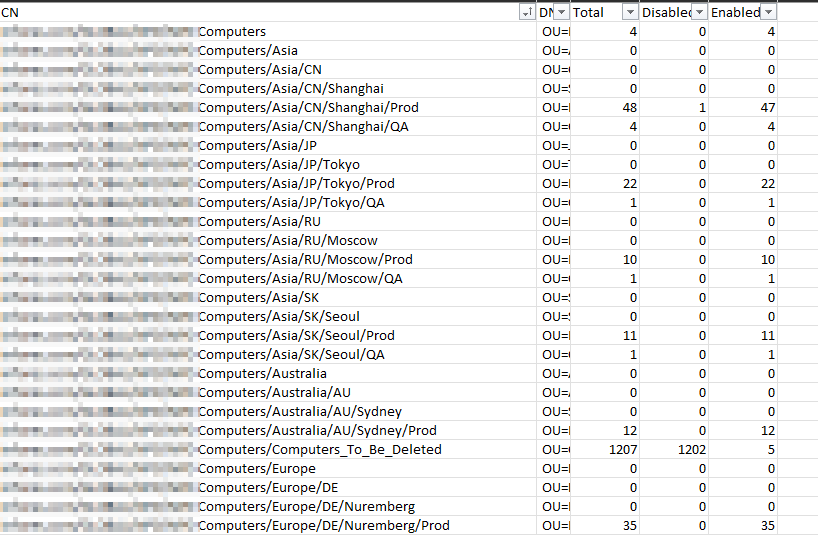
I spent awhile drafting the below script, which will enumerate the OU’s, then go into each and count the total number of computers, the number of disabled computer, the number of disabled computers, then export it to a csv. In my case, I scoped it specifically to the OU that contained only computers, but this can be expanded as needed.

##define csv to export to
$csvfile = "C:\temp\exports\pc-count-by-ou.csv"


##get all OU's under specified OU
$OUlist = get-adorganizationalunit -filter * -searchbase "OU= Computers,DC=yourdomain,DC=com" -Properties canonicalname | select distinguishedname, canonicalname 

##iterate through each OU
foreach ($ou in $oulist){

##get OU CN
$readableOU = $ou.canonicalname
##get OU DN
$scriptOU = $ou.distinguishedname

##Count all pc's in OU and store in a variable
$totalOUPCcount = get-adcomputer -filter * -searchbase "$scriptou" -searchscope OneLevel| measure-object
$totaloupccountnumber = $totalOUPCcount.Count

##Count all disabled pc's in OU and store in a variable
$disabledpccount = get-adcomputer -filter {enabled -eq $False} -searchbase "$scriptou" -searchscope OneLevel | measure-object
$disabledpccountnumber = $disabledpccount.Count

##Count all enabled pc's in OU and store in a variable
$enabledpccount = get-adcomputer -filter {enabled -eq $True} -searchbase "$scriptou" -searchscope OneLevel | measure-object
$enabledpccountnumber = $enabledpccount.Count

##line to write with results 
$csvlog = "$readableOU; $scriptOU; $totaloupccountnumber; $disabledpccountnumber; $enabledpccountnumber"
##print to working window
write-host "$csvlog"
##append to csv
$csvlog | out-file $csvfile -append 
}

Note, this does not put headers in, which I may go back and update later, but the csv can then be opened with excel, and using the “text to columns” feature with semicolon as the delimiter, gives us some usable results. (I’ve added the headers manually in my excel, and since the DN is not very useful in my current case, just squished that down to get it out of my view).

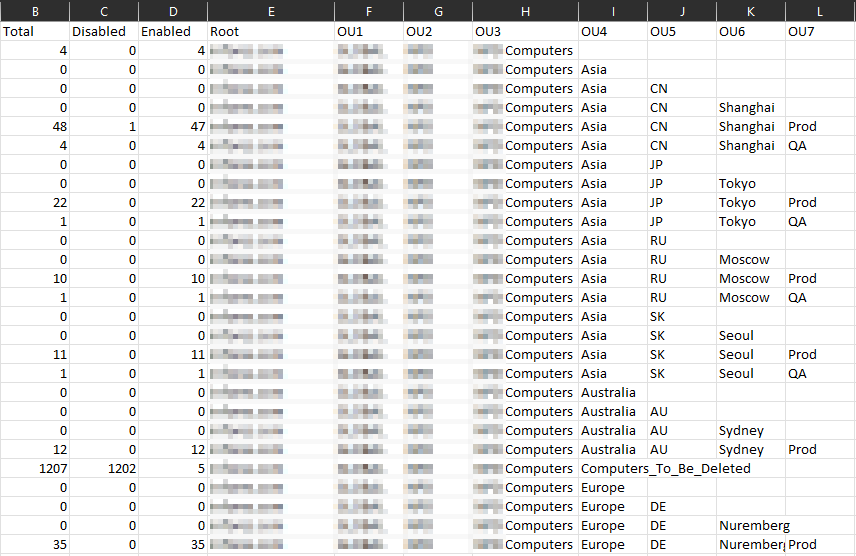
I can also further use text to columns on the “CN” field using the “/” as the delimiter since it is in a better order, as desired.

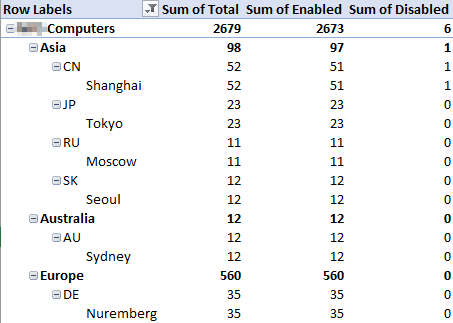
I now have a much more useful list to group these up with a pivot table and get the summaries I need, and get as detailed as I wish.

I’ll probably also adjust the script to return the actual computers in the script so that I can have a list by location, but that is for another time. Happy Powershelling!

Export All GPOs in a domain to XML or HTML

EDIT 8/28/2024: I have updated this script and it is available at A more elegant GPO Export Script

Not a lot of exposition on this one.

I have a client that has 100+ Group Policy Objects that I wanted to export. Now in the time I was developing a way to automatically do this, I probably could have right clicked each and exported, but that’s no fun and I can use this script in the future.

General Script Notes

  1. Change $folderpath variable to an existing folder path, this script will not create the folder structure, but if you want to add that, feel free
  2. the last line will go through this entire folder and rename with a new file extension, xml or html, depending on which script you are running. Please use a clean and empty folder for this. If there is anything else in the folder, it will get the filetype changed!

Powershell script to export all GPOs to XML

$folderpath = "C:\path\to\existing\folder\"
$AllGpos = get-gpo -all
ForEach($g in $AllGpos)
{
    $filename = $g.DisplayName
    $fullpath = join-path -path $folderpath -ChildPath $filename
    $Gpo = Get-GPOReport -reporttype xml -guid $g.Id -path $fullpath

}

get-childitem -path $folderpath | Rename-Item -NewName { $PSItem.Name + ".xml" }

Powershell script to export all GPOs to HTML

$folderpath = "C:\path\to\existing\folder\"
$AllGpos = get-gpo -all
ForEach($g in $AllGpos)
{
    $filename = $g.DisplayName
    $fullpath = join-path -path $folderpath -ChildPath $filename
    $Gpo = Get-GPOReport -reporttype html -guid $g.Id -path $fullpath

}

get-childitem -path $folderpath | Rename-Item -NewName { $PSItem.Name + ".html" }

That’s all for today!

Flexing your Powershell: Bulk AccessTier modification for Azure Blobs

Credit where credit is due, first of all. This post would not be possible without HEAVILY (and by heavily I mean stealing everything but a single parameter modification) referencing https://webmakers.co.nz/how-to-convert-entire-data-in-a-blob-storage-from-cool-storage-tier-into-archive-access-tier/, so please go check that out so he gets the credit. 

Feel free to now skip to “The Command” if you don’t want the explanation of how I got here and why it works.

Backstory

We setup Azure storage and put a metric ton of data into it, organized into folders. Unfortunately, our cost projections were way off and we were bleeding money to Microsoft for the storage. This is a byproduct of our first foray into storing data natively in Microsoft Blobs on this scale. We were able to change the storage type to minimize this cost a lot, but knew that modifying the AccessTier on a subset of the data that is not regularly accessed would bring us back to the ballpark we expected.

We have two containers, lets call them data1 and data2, each with subfolders within subfolders within subfolders. We did not have this organized so that one container could be “cool” storage and one “hot”. All Containers were set to “Hot”, and we needed a single root “folder” (I’ll explain the quotes in a minute under The Breakthrough) within a container changed to cool, while the others remained hot.

Issue

You can modify the AccessTier on an entire container, or a single “file”, but not on a folder of files. Or so it seemed like from everything we were seeing (and the command provided in https://webmakers.co.nz/how-to-convert-entire-data-in-a-blob-storage-from-cool-storage-tier-into-archive-access-tier/ (seriously, click on that and give my source a reference). Additionally the folders turned out to not be anything usable to filter the selection.

The Breakthrough

In troubleshooting another issue I was having in getting powershell to load the right modules and run them correctly, I stumbled on a comment in a post about the “folders” in containers and blobs. It tickled something in my brain, but didn’t click all the way into place yet. I wish I still had that page open, but seeing as I read through 30 or more posts about this, I doubt I’ll ever find it again to reference it. My deepest apologies, and I promise I will edit this if I find it.

What it explained is that the folders are not folders in the traditional Microsoft Windows sense. Blob storage is a flat file system. The folders are just the filenames, and Azure parses them into displaying them into folders. So in collection “data” there is rootfolder\subfolder\file.txt, that is an actual file name. If windows handled files this way, and you wanted to use a command prompt to “cd” (change directory) into the users directory, it wouldn’t work.

I hope that makes sense.

The command

All that explanation aside, below is the command modified to pull only files from RootFolder1 and change them to the “cool” tier. If you had RootFolder2 and RootFolder3, they would remain the Access Tier they currently are. Items in bold need to be from your account.

Install-Module -Name AzureRM
Set-ExecutionPolicy -ExecutionPolicy RemoteSigned
Import-Module AzureRM
$StgAcc = “YourStorageAccountName”
$StgKey = “YourConnectionKey”
$Container = “YourContainerName”
$ctx = New-AzureStorageContext -StorageAccountName $StgAcc -StorageAccountKey $StgKey
Connect-AzureRmAccount
$blob = Get-AzureStorageBlob -Container $Container -Context $ctx -blob RootFolder1*
$blob.icloudblob.setstandardblobtier("Cool")

*after “Connect-AzureRmAccount” you will be prompted for a username and password to connect to Azure.

Recommendation:

After line 9, you can enter $blob to see what is stored in that variable. I did this to ensure it only pulled the files I wanted to change. It also shows the AccessTier. I ran it again after line 10 to verify the AccessTier changed.

Second Example:

If you want to make changes on a subfolder of a root folder, or a folder four levels deep, the modification is just to the -blob parameter. Say in “YourContainerName” there is folder strucure “RootFolder1\subfolder1\sub subfolder\” you would modify the -blob parameter as follows (note that the folder structure has a space, so requires the quotes:

Install-Module -Name AzureRM
Set-ExecutionPolicy -ExecutionPolicy RemoteSigned
Import-Module AzureRM
$StgAcc = “YourStorageAccountName”
$StgKey = “YourConnectionKey”
$Container = “YourContainerName”
$ctx = New-AzureStorageContext -StorageAccountName $StgAcc -StorageAccountKey $StgKey
Connect-AzureRmAccount
$blob = Get-AzureStorageBlob -Container $Container -Context $ctx -blob "RootFolder1/subfolder1/sub subfolder/*"
$blob.icloudblob.setstandardblobtier("Cool")

Additional helpful notes, maybe

YourStorageAccountName  – open the Azure portal and go to “storage accounts”. the “Name” of the accounts your containers are in is what is used here.
YourConnectionKey  – once you have your storage account open, go to “Access Keys” under settings, this is the super long and complicated string under “Key”
YourContainerName – same page you are already on, scroll down to “container” under Blob Service. This will be the “Name” that contains the data that you want to work with.

The Saga is Complete

And with that I will go home, plug in my computer and let powershell change the AccessTier of a couple thousand files while I get some food and melt my brain with junk TV shows.

Office365 – When Distribution Groups Go Bad

We have migrated a number of clients to Office365, including my own company’s email system. Every once in a while, we run into a glitch in the Matrix and have to chase down what Microsoft suddenly changed and how we can get around it. In today’s episode of “What Did Microsoft Fuck Up?”, we encounter distribution list problems.

These distribution groups have been working for the entire time that the accounts have been active, so in some cases, this has been over a year. The problem is that emails to distribution groups that include external contacts were delivering to the internal contacts and silently failing to the external. Logs available to the customer admin account did not indicate any failure. Opened a Service Request with Microsoft, but they are next to useless, and almost always call when I am not available. Researched on my own and found http://community.office365.com/en-us/forums/158/t/145925.aspx. Found that once we enabled the -ReportToOriginatorEnabled on the distribution groups, sending worked flawlessly.

Since I already had the ticket opened with Microsoft, I wanted to see if they could provide a root cause, and to educate them on their own system since other users are experiencing the same issue. Microsoft’s response was that it was due to the “service upgrade”, which all of the accounts in question had gone through months ago, and the problem only started a few days ago. I pushed them further and finally the tech I was working with was going to get a Senior FOPE (Forefront Online Protection for Exchange) to speak with me. Even she couldn’t get him on the phone. She essentially waved it off as a silent FOPE update that required the mx record for the domain to be changed to a new address that reflects domain-com.mail.protection.outlook.com, rather then the old address that did not use “protection”.

The problem in our case is then: these particular clients use McAfee SaaS spam filtering, thus their mx records need to be set to point to McAfee, and McAfee forwards the mail to Office365. Thus the root cause is apparent.

TL;DR:

Problem: distribution groups with external contacts deliver successfully internally, fail silently to external addresses.

Root Cause:

1. On the distribution groups -ReportToOriginatorEnabled is by default false. Historically, this has not been a problem.
2. There was a silent update to Forefront Online Protection for Exchange. This update recommends that the MX record for the domain point to the new office365 MX record that includes “protection” in the address.
3. The clients that experienced this issue use McAfee spam filtering which requires the MX records to point to McAfee rather than directly to office365.

Solution:

Set -ReportToOriginatorEnabled to True on all distribution groups for any company that cannot have the new MX record. This can be done for all distribution groups at once by using powershell command:

> Get-DistributionGroup | Set-DistributionGroup -ReportToOriginatorEnabled $true

Bear in mind that any further distribution group will need this flag changed as well. This can be accomplished using this powershell command:

Set-DistributionGroup “display name of distribution group” -ReportToOriginatorEnabled $true

Upgrading from Sharepoint Services 3.0 (Service Pack 3) to Sharepoint Foundation Server 2010

Just attempted to do this with the existing documentation, and I had a nightmare of a time. The Microsoft TechNet articles were pretty good, and the checklist here is helpful, but navigating back and forth through the different pages was difficult. The video HERE made it look really simple but some steps didn’t work quite as easily as I’d hoped, and it left out some key setup steps. I’m going to go through all the steps as it ended up working for me. I did a database attach upgrade from one server to another, setting the existing site to read only so that no changes could be made during the change. I’m also using port 8080 as well as the traditional port 80.

PREPARATION

Run the upgrade checker. I don’t have a whole lot of advice here, as mine ran clean. I have a fairly simple installation with one site and it is basic.

SETUP

On the new server download Sharepoint Foundation Server 2010 from here, and the SQL Express 2012 Management tools from here. Run the Sharepoint Foundation Server Installer. This will give you a menu, where you can install the prerequisites including Sharepoint Server 2008. Once this is completed, Run the Sharepoint Foundation Server Installer. Finally, run the SQL Express 2012 Management tools installer. All of these are pretty straightforward installers with little to no options. Once all of that is installed Run the Sharepoint Foundation Server Configuration Wizard. This will automatically setup the default site and settings. At this point if there are any customizations or features that need to be applied, this would be the time to apply them.

DATABASE BACKUP

On the existing installation, open the Central Administration for the Sharepoint site. Go to application management, then Content Databases. Make note of the database name for your site. Open SQL Server Management Studio Express and locate the database previously noted, I’ll refer to it as WSS_Content_a1. Right click WSS_Content_a1 and go to properties. Select Options from the left pane, and scroll down on the right pane to Database Read-Only, set it to true, and click ok. Now that the database is set to read-only, right click on it again, and select tasks, then back up. Ensure backup type is set to Full, and add a destination to back up to, including a file name ending in .bak. Once the backup completes, move the .bak file to the new server.

DATABASE UPGRADE

On the new server, open SQL Management Studio. Right click on Databases and select restore database. Select “From Device” and locate your .bak file, click ok to start the restore. Once the restore completes, some work must be done in powershell to prepare sharepoint and upgrade the database.

Open the Sharepoint 2010 Central Administration Site. Locate the database associated with the default site and make note of the database name. I will refer to it as WSS_Content_b2. Open the Sharepoint 2010 Management Shell. You will need to dismount the database that was created for the default site, and mount the database from your old site.

First to dismount the default database run, replacing WSS_Content_b2 with the database noted.

dismount-spcontentdatabase WSS_Content_b2

Then test your old site database, replacing WSS_Content_a1 with your restored database, and servername with your server name.

test-spcontentdatabase -name WSS_Content_a1 -webapplication http://servername/

If the test returns errors, research them and decide if you want to ignore or fix them. Once you are ready, mount your database to the site, again replacing with your own values.

mount-spcontentdatabase -name WSS_Content_a1 -webapplication http://servername/

This will put a percentage complete below the command, you can also check the status in the upgrade section of the Sharepoint Central Administration Site. Once the upgrade is complete, check the upgrade section of the Sharepoint Central Administration Site for information about any errors that may have occurred and to see the success or failure status.

Now when you browse to the default site, your site should appear. Once you have confirmed that is working, you can move on.

CONFIGURING PORTS  

This was a little tricky for us, as our client accesses the site on port 8080, internally and externally. To configure this, go to Application Management, then select Configure alternate access mappings.  The default should have and internal URL of http://servername and a Public URL for Zone of http://servername. The Intranet zone should have and Internal URL of http://servername:8080 and a Public URL for Zone of http://servername:8080. If you are accessing this via a web address as well, enter an Internal URL of http://my.sharepointsite.com:8080 with a Public URL for Zone of htpp://my.sharepointsite.com:8080, with a zone of Internet.

NOTES: change 8080 to whichever port you wish to use. Keep in mind for the external web address you may have to adjust your firewall rules to point to your new server. You may also need to adjust your DNS settings.

Finally, go into Web Applications, select Manage Web applications. Select your default site then click on “extend” from the ribbon. In the Create a new IIS web site Name, enter change the numbers following sharepoint to 8080 (or whichever port you are using). Change the port to 8080 (again, or whichever port you are using.) Finally, scroll down and change the URL to http://servername:8080/ and leave the zone at internet, click OK to apply.

VOILA! Test internally and externally to confirm it works and celebrate your success!